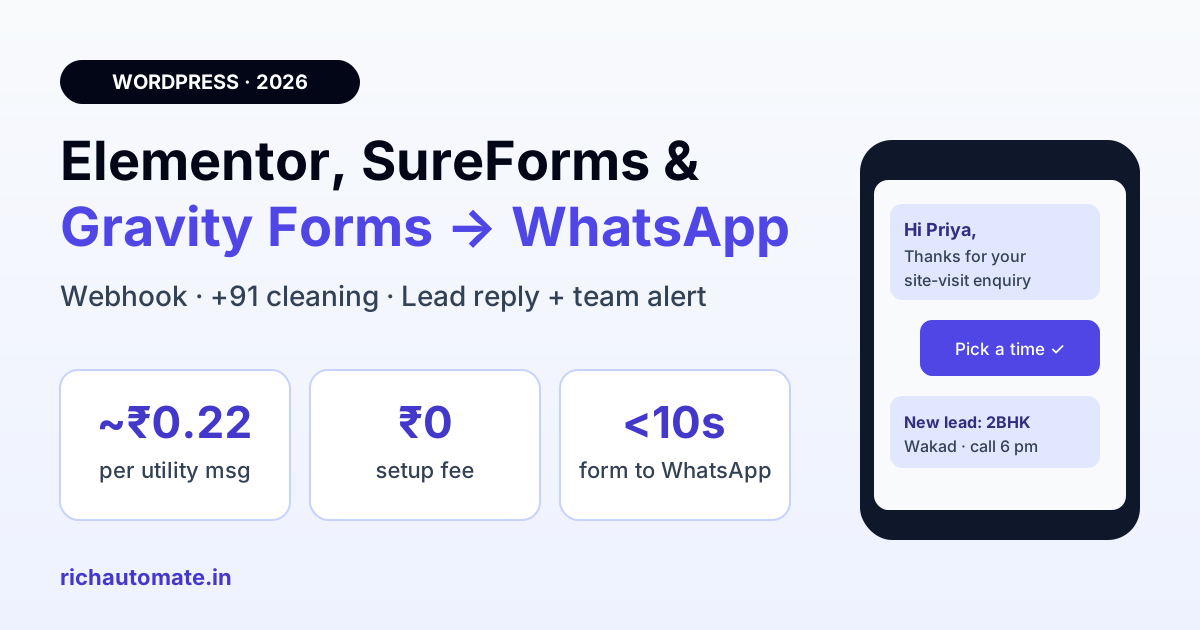
To send Elementor, SureForms or Gravity Forms leads to WhatsApp, use the form's own webhook feature to post each submission to the WhatsApp Business API, which then sends an approved template to the lead and an alert to your sales team within seconds. Elementor Pro has a built-in Webhook action, SureForms has Webhooks in each form's Integrations tab, and Gravity Forms uses its Webhooks Add-On; on RichAutomate each lead then costs about ₹0.22 per WhatsApp message on Client Pay.
This guide is for Indian businesses whose WordPress site runs one of these three form builders: clinics, coaching institutes, builders, interior studios, travel agents and D2C brands. It covers what each plugin can send, the two messages worth automating, field mapping and +91 number cleaning, consent, real cost per lead in rupees and the mistakes that quietly break the setup. If your site uses Contact Form 7 or WPForms instead, read our sibling guide on Contact Form 7 and WPForms WhatsApp notifications.
Why form leads should land on WhatsApp, not just email
A form email sits in an inbox until someone opens it. In India, a lead who filled in your form is usually comparing two or three other businesses at the same moment, and the first one to reply on WhatsApp often wins the conversation. Email notifications also fail silently: a broken SMTP setting or a spam filter can hide leads for days before anyone notices.
Moving the lead to WhatsApp fixes three things at once:
- Speed. The lead gets an acknowledgement on WhatsApp seconds after pressing Submit, while your page is still open on their phone.
- Visibility. Your sales team gets the lead on the phone they already carry, not in a shared mailbox.
- A real channel. When the lead replies, a 24-hour customer service window opens, and your team can chat freely inside it without paying Meta for each reply.
For the bigger picture of connecting a WordPress site to WhatsApp, including chat buttons and WooCommerce, see our WhatsApp WordPress integration guide.
What each form builder can send
All three plugins can push a submission to an outside URL, which is all the WhatsApp side needs. They differ in where the setting lives, which licence includes it and how much control you get over the data.
| Form builder | How it sends data out | Licence needed | Control over keys |
|---|---|---|---|
| Elementor Pro Form widget | "Webhook" under Actions After Submit | Elementor Pro (the free Elementor has no Form widget) | Sends field data; map keys in an automation tool or use the PHP hook |
| SureForms | Webhooks in the form's Integrations tab | Check that your SureForms plan includes Webhooks | Endpoint URL, request method and optional trigger conditions |
| Gravity Forms | Webhooks Add-On (one feed per form) | Elite licence (also Nonprofit); Pro users can route through the Zapier add-on | Choose JSON, pick fields and name each key |
Plugin names, menus and licence tiers change between versions, so confirm against your own plugin dashboard before you buy an upgrade only for this.
The two messages worth automating
Keep the first version small. Two WhatsApp messages cover almost every form lead:
- The lead acknowledgement. A utility template sent to the number the visitor typed: "Hi Priya, thanks for your enquiry about a 2BHK in Wakad. Our advisor will call you within 30 minutes. Reply here with a good time to talk." It confirms the request without selling, which keeps it in Meta's utility category.
- The team alert. A second template sent to your sales number or to the assigned agent: name, phone, the service selected and the page the form was on. This replaces the email notification nobody reads on time.
Both are business-initiated messages, so each must be an approved template. A free-form text message fails if the lead has never messaged you, because no customer service window is open yet. Our guide to the WhatsApp welcome message and greeting automation has wording ideas that pass review.
Elementor Pro: Webhook action or PHP hook
Route 1: the built-in Webhook action
Edit the page, select the Form widget, open Actions After Submit and add Webhook. A new Webhook section appears where you paste the receiving URL. Elementor then posts every successful submission to that URL.
The receiving end is usually a webhook trigger in Make, Pabbly Connect or Zapier. There you map Elementor's fields to clean keys called phone and name, tidy the number, and call RichAutomate. Elementor uses each field's ID and label in the data it sends, so set short, stable field IDs such as phone and service under each field's Advanced tab before you start mapping.
Route 2: the elementor_pro/forms/new_record hook
If a developer maintains your site, a small mu-plugin avoids a monthly automation-tool fee. Elementor Pro fires the elementor_pro/forms/new_record action after a submission is processed. Inside it, read the fields from the record, clean the number and send one request to RichAutomate with wp_remote_post. Check the form name inside the hook so only your enquiry form triggers WhatsApp, not your newsletter form.
SureForms: Webhooks in the Integrations tab
Open the form in the SureForms editor and go to its Integrations tab. Add a webhook, give it a name, paste the endpoint URL and choose the request method, which will almost always be POST. You can add trigger conditions, which is useful when one form serves several purposes: send WhatsApp only when the visitor chose "Book a site visit", for example, and skip it for "General question".
As with Elementor, the simplest reliable path is to post into an automation tool, map the phone and name fields there and then call RichAutomate. Third-party plugins such as Hooksure also add webhook features to SureForms, but test one real submission before relying on any of them.
Get the India 2026 WhatsApp BSP price comparison
Wati vs AiSensy vs Interakt vs RichAutomate: Meta rates, platform fees and hidden costs, side by side. We send it to your WhatsApp in a minute.
Gravity Forms: the Webhooks Add-On
With an Elite licence, install the Webhooks Add-On from the Gravity Forms add-ons page, then open your form and go to Settings → Webhooks to add a feed. Set the request URL, choose POST, set the format to JSON, and under the request body pick Select Fields so you can name each key yourself: phone for the phone field and name for the name field.
That naming control is what makes Gravity Forms the easiest of the three. A RichAutomate flow can be started from outside WhatsApp by a POST to its trigger URL with a JSON body containing phone, an optional name and an optional data object, so a Gravity Forms feed can call the flow directly without a middle tool. Conditional logic on the feed lets clinics and builders send different services to different flows.
On a Gravity Forms Pro licence, use the Zapier add-on instead and do the mapping in Zapier. In Zapier, add a formatter step for the phone number and a webhook action that calls RichAutomate.
Field mapping and +91 number cleaning
The phone field is where most setups break. Indian visitors type numbers in every format, and a WhatsApp send needs one clean international number.
| What the visitor types | What WhatsApp needs | Fix |
|---|---|---|
| 98765 43210 | 919876543210 | Remove spaces, add 91 to 10-digit numbers |
| +91 98765-43210 | 919876543210 | Remove +, spaces and dashes |
| 098765 43210 | 919876543210 | Drop the leading 0, then add 91 |
| 919876543210 | 919876543210 | Already correct |
| 9876 5432 | Invalid | Reject at the form with a minimum-length rule |
Two practical rules help. First, use the form builder's phone field type with a 10-digit minimum, so obviously short numbers never get through. Second, do the cleaning in one place: a formatter step in your automation tool, or the receiving system. RichAutomate's flow trigger normalises Indian 10-digit numbers and rejects anything shorter than 10 digits with a clear error. Our guide to the WhatsApp number format with the +91 country code covers the edge cases.
Map the other fields as data. Service, city, budget and preferred time become values your WhatsApp template and team alert can use, so the agent sees "2BHK, Wakad, ₹80 lakh budget, call after 6 pm" instead of a bare number.
Add a consent checkbox before the first message
Meta expects businesses to have opt-in before sending WhatsApp messages. On a form this is simple: add a checkbox such as "Send me updates about my enquiry on WhatsApp" next to the phone field. Keep it unticked by default and store the answer with the lead.
Consent also protects your number's quality rating. A lead who expected a WhatsApp reply rarely blocks you. A lead who did not, and then receives three promotional messages, often does, and repeated blocks can lower your messaging limits. Send only the acknowledgement and team alert automatically, and keep any promotional follow-up for people who actually replied.
What it costs per lead in ₹
On RichAutomate Client Pay you pay a ₹0.10 platform fee per message, and Meta bills its own per-message charge directly to your card. Meta's India rate is about ₹0.115 per utility template and roughly ₹0.86 per marketing template; check Meta's current rate card, because these change. Replies inside the 24-hour customer service window carry no Meta charge, only the platform fee.
| Scenario | Messages per lead | Approx. cost per lead | 500 leads a month |
|---|---|---|---|
| Acknowledgement to the lead only | 1 utility template | ₹0.115 + ₹0.10 = about ₹0.22 | about ₹108 |
| Acknowledgement + team alert | 2 utility templates | about ₹0.43 | about ₹215 |
| Both + 5 chat replies in the window | 2 templates + 5 service replies | ₹0.43 + 5 × ₹0.10 = about ₹0.93 | about ₹465 |
There is ₹0 setup, and optional plans start at ₹499 a month; see RichAutomate pricing for what each plan includes, or estimate your own volume with the WhatsApp API cost calculator. To go live you need a GST or Udyam (MSME) registration, and the 14-day free trial lets you test the whole form-to-WhatsApp flow first. For a coaching institute or builder, one converted lead pays for months of these messages.
Testing checklist and common mistakes
- Test three number formats. Submit with +91 98765 43210, 098765 43210 and plain 10 digits, and confirm all three reach WhatsApp.
- Log one real payload first. Point the webhook at your automation tool's catcher, submit once and copy the exact field keys. Guessed keys are the most common reason nothing sends.
- Page caching and spam plugins. Aggressive caching or a CAPTCHA plugin can block the submission before the webhook fires. Test on the live page, logged out, from a phone on mobile data.
- Elementor field IDs changed. Renaming or recreating a field can change its ID and break the mapping. Fix the IDs once and do not touch them.
- Free-form first message. It fails because no window is open. The first message to a new lead must be an approved template.
- Promotional words in a utility template. "Offer", "discount" and "limited seats" can get a template reclassified as marketing, which costs several times more.
- Duplicate submissions. A visitor who double-taps Submit gets two messages. Deduplicate on phone number within a few minutes in your flow.
Next step: connect one form this week
Start with your highest-value form, usually "Book a demo", "Book a site visit" or "Request a callback". Get one acknowledgement template approved, connect the webhook, test the three number formats and run it for two weeks before adding more forms or follow-ups. Watch how many leads reply on WhatsApp; that number usually justifies the next step.
Create your free RichAutomate account to connect your number, submit your first lead acknowledgement template and wire up your Elementor, SureForms or Gravity Forms form. You get 14 days free with ₹0 setup, and on Client Pay Meta bills its charges straight to your own card.