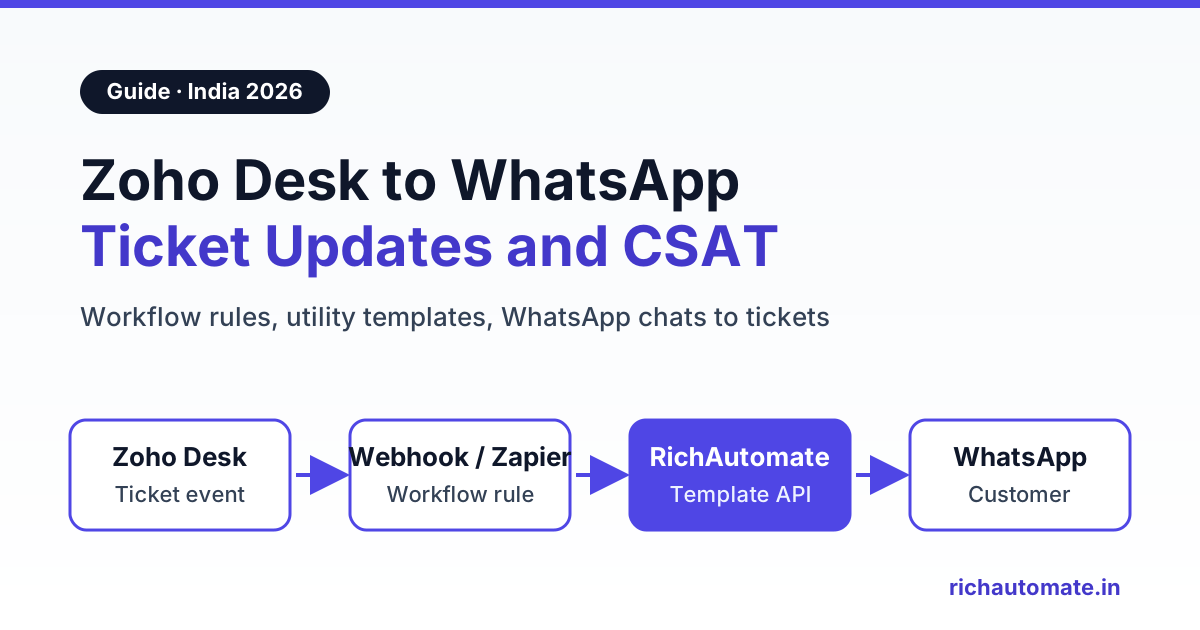
To connect Zoho Desk to WhatsApp, you either switch on Zoho Desk's own instant-messaging channel with a WhatsApp Business API provider, or link Zoho Desk to a WhatsApp platform such as RichAutomate through workflow webhooks or Zapier, Make or Pabbly. With the webhook route, a ticket being created, updated or resolved sends the customer a Meta-approved WhatsApp template, and new WhatsApp messages can open or update Zoho Desk tickets automatically.
A D2C skincare brand in Jaipur, a SaaS billing tool in Bengaluru or an AC service company in Pune all face the same gap: ticket-status emails go unread, while customers live on WhatsApp. Zoho Desk does not send WhatsApp messages by itself. You need a WhatsApp Business API number and a way to wire ticket events to it.
Before going further, one point needs to be clear. RichAutomate does not have a built-in Zoho Desk integration, and it is not a listed WhatsApp provider inside Zoho Desk. Every setup in this guide uses Zoho Desk workflow rules, webhooks or an automation tool to call the RichAutomate API. That is different from Zoho CRM, which RichAutomate does connect to directly. If your sales team lives in CRM rather than Desk, our WhatsApp Zoho CRM integration guide is the shorter path.
Three ways to connect Zoho Desk and WhatsApp with RichAutomate
Support teams usually need three jobs done: tell customers what is happening with their ticket, ask a follow-up such as a CSAT rating, and turn incoming WhatsApp chats into tickets. Each maps to a route. Zoho Desk's own IM channel is the fourth option.
| Route | What it does | Setup effort | Best for |
|---|---|---|---|
| A. Ticket event → WhatsApp template | Zoho Desk workflow or an automation tool calls /api/v1/send-template when a ticket is created, changes status or is resolved | Low: one approved template and one webhook or Zap per event | Status updates, ETAs, resolution notices |
| B. Ticket event → chatbot flow | Ticket event calls a flow's Incoming Webhook trigger, which runs a multi-step WhatsApp conversation | Medium: build and publish a flow in the visual builder | CSAT surveys, collecting order IDs or product photos |
| C. WhatsApp inbound → Zoho Desk ticket | Conversations stay in the RichAutomate team inbox; Zapier, Make or Pabbly creates or updates a Desk ticket, matching the contact by phone | Medium: contact matching and duplicate checks need care | Teams that want WhatsApp history logged against Desk tickets and reports |
| Zoho Desk IM channel | Zoho Desk's own instant-messaging channel connected to a WhatsApp provider, so agents reply inside Desk | Low to medium, depends on your edition and provider | Agents who must work only inside Zoho Desk |
Routes A and B push from Desk to WhatsApp; Route C goes the other way. A sensible order is A first, B for CSAT next, and C only once you know how much support actually arrives on WhatsApp.
Route A: send WhatsApp ticket updates from Zoho Desk
The simplest and most useful route: when a ticket's status changes, the customer gets a short utility template with the ticket number, status and ETA.
How the call works
In Zoho Desk, workflow rules can fire on events such as ticket creation or a field update, and run an action that calls an external URL (a webhook or a custom function, depending on your edition). If you prefer not to touch Desk's setup screens, Zapier, Make and Pabbly can all watch Zoho Desk for new or updated tickets instead.
Either way, the action is a POST request to RichAutomate:
- URL:
https://richautomate.in/api/v1/send-template - Header:
Authorization: Bearer YOUR_API_KEY - Content type: JSON
An illustrative body looks like this:
{
  "phone": "919876543210",
  "template_name": "ticket_update",
  "language": "en",
  "variables": ["#4521", "Resolved"]
}
Treat this as illustrative: check the RichAutomate API docs in your dashboard for exact field names before going live. The variables array fills your template's placeholders in order.
Rules that decide whether the message goes out
- Templates only for business-initiated messages. If the customer has not messaged you in the last 24 hours, you can only send a Meta-approved template. Ticket updates belong in the utility category.
- Phone format. Send
919876543210: country code, no plus sign, no spaces. Zoho Desk contacts often store+91 98765 43210or a bare 10-digit number, so clean it in the workflow or automation step. - Opt-in. The customer must have agreed to receive WhatsApp messages from you. Capture this on your order form, support form or the first WhatsApp chat, and store it in a Desk contact field you can filter on.
- Keep utility templates transactional. A resolution notice that adds "use code SAVE10 on your next order" can be reclassified as marketing, which Meta charges more for.
Route B: trigger a chatbot flow from a ticket (CSAT and data collection)
Some ticket events need a conversation, not a single message. The classic example is a CSAT survey after resolution: you want the customer to tap a rating, and if they choose 1 or 2, you want to ask what went wrong and alert a team lead.
- In RichAutomate's visual flow builder, create a flow with Incoming Webhook as the trigger.
- Build the steps: a template opening message, a 1-5 button question, a branch for low scores asking for a reason, and a thank-you message.
- Publish the flow and copy its trigger URL, in the form
https://richautomate.in/api/v1/public/flows/{token}/trigger. The token in the URL acts as the credential, so keep it private. - In Zoho Desk (or your automation tool), fire a POST to that URL when the ticket status becomes Closed, sending the phone number, name and ticket number.
An example opening template for a Delhi electronics brand might read: "Hi Priya, aapka ticket #4521 resolve ho gaya hai. How happy are you with our support? Tap a rating from 1 to 5." Low scores can be routed to a supervisor in the team inbox, and the score can be posted back to the Desk ticket through your automation tool.
The same pattern works for data collection: a ticket tagged "Damaged in transit" can trigger a flow that asks for the order ID and two photos.
Route C: turn WhatsApp messages into Zoho Desk tickets
If WhatsApp is a real support channel for you, you probably want those conversations to show up in Zoho Desk reports. Route C keeps the live chat in the RichAutomate team inbox, where agents reply, use quick replies and assign chats, and uses an automation tool to create or update the matching Desk ticket.
- In the RichAutomate flow builder, create a flow that starts on inbound messages (keyword or any-message trigger) and add a Webhook node that POSTs the sender's number and message text to a catch-hook in Zapier, Make or Pabbly.
- Clean the sender's number and search Zoho Desk for a contact with that phone number. Create the contact if none exists.
- Search for an open ticket for that contact on the WhatsApp channel. If one exists, add the message as a comment or thread. If not, use the Zoho Desk "Create Ticket" action.
- Optionally send the new ticket number back to the customer as a free-form reply, which is allowed because they messaged you first and the 24-hour window is open.
Skip step 3 and Desk fills up with one ticket per WhatsApp message. Our Zapier WhatsApp integration setup guide covers catch-hooks, filters and field mapping in detail; Make and Pabbly follow the same logic with different screens.
Which Zoho Desk ticket events deserve a WhatsApp template
Not every status change is worth a message. Customers want updates that affect them, not every internal field change. This mapping suits most Indian D2C and service teams:
Get the India 2026 WhatsApp BSP price comparison
Wati vs AiSensy vs Interakt vs RichAutomate: Meta rates, platform fees and hidden costs, side by side. We send it to your WhatsApp in a minute.
| Ticket event | Template category | Example text | Send? |
|---|---|---|---|
| Ticket created | Utility | "We have received your request. Your ticket number is #4521. We will update you here." | Yes, always |
| Ticket assigned | Utility | "Rahul from our support team is now handling ticket #4521. Expected update by 6 PM today." | Only if you share an ETA |
| Awaiting customer | Utility | "We need one detail to continue ticket #4521: please reply with your order ID." | Yes, it unblocks the ticket |
| Resolved | Utility | "Ticket #4521 is resolved. Reply here within 7 days if the issue comes back." | Yes, always |
| CSAT after closure | Utility (keep it about the ticket) | "How was your support experience for ticket #4521? Tap 1 to 5." | Yes, via a Route B flow |
Skip messages for internal moves such as priority changes, tag edits or reassignment between two agents in the same team. If you promise response times on WhatsApp, set them against realistic targets; our WhatsApp customer service SLA playbook covers first-response and resolution targets for Indian support teams.
Step-by-step setup: Zoho Desk to WhatsApp in an afternoon
- Connect your WhatsApp Business API number in RichAutomate. Your personal WhatsApp or the WhatsApp Business app cannot be driven by an API.
- Create and submit utility templates for "ticket created", "awaiting customer" and "resolved". Use clear variables for the ticket number and status. Approval is often quick for plain transactional text.
- Generate an API key in the developer section of the RichAutomate dashboard and store it like a password.
- Add an opt-in field on Zoho Desk contacts (for example, a checkbox "WhatsApp updates") and make sure phone numbers are stored with the country code.
- Build one workflow in Zoho Desk, or one Zap, scenario or Pabbly workflow, that fires on ticket creation and calls the send-template endpoint. Filter on the opt-in field.
- Test with your own number on a test ticket. Confirm the message arrives and the delivery status shows in your RichAutomate inbox.
- Add the resolved event, then the awaiting-customer event, one at a time.
- Build the CSAT flow (Route B) once updates are stable, and only then consider Route C.
What it costs: a monthly example for 3,000 ticket updates
Costs come from three places: Meta, RichAutomate and your automation tool. On RichAutomate's Client Pay model, RichAutomate charges a platform fee of ₹0.10 per message, and Meta bills its own per-template charges directly to your business. Zoho says it does not charge for the IM integration itself, but that is a separate route, and message fees there come from whichever WhatsApp provider you connect.
Meta's utility template rate for India is about ₹0.115 per message. Meta revises these rates, so check Meta's WhatsApp pricing page before you budget. Utility templates delivered while a customer service window is already open are free, and so are your replies inside that window.
Take a support team that sends 3,000 ticket update templates a month, all outside an open window (the worst case):
| Cost line | Calculation | Monthly amount |
|---|---|---|
| Meta utility templates (billed by Meta) | 3,000 × about ₹0.115 | about ₹345 |
| RichAutomate platform fee | 3,000 × ₹0.10 | ₹300 |
| RichAutomate Starter plan | Fixed | ₹499 |
| Subtotal on the WhatsApp side | ₹345 + ₹300 + ₹499 | about ₹1,144 |
| Automation tool (if used) | Zapier, Make or Pabbly bill per task or operation | Depends on your plan |
That is roughly 38 paise per update. Updates sent inside an open window cut the Meta line, and calling the API straight from a Zoho Desk workflow removes the automation-tool line.
RichAutomate plans are Pay-as-you-go at ₹0/month, Starter at ₹499/month, Pro at ₹899/month and White-label at ₹1,199/month. There is no setup fee, every account gets a 14-day free trial, and you get 100 free credits on signup. Plan details are on the RichAutomate pricing page. On the Zoho side, per-agent pricing varies by edition, and which editions include the IM channel (and how many WhatsApp accounts each allows) also varies, so check your edition on zoho.com/desk.
Troubleshooting: common Zoho Desk to WhatsApp errors
Template rejected or stuck in review
Common causes are vague variables, promotional lines in a utility template, or a variable at the very start or end of the text. Rewrite it as plain ticket information, add sample values and resubmit. Unapproved templates cannot be sent.
Message accepted but never delivered
Almost always the phone format. Zoho Desk fields with +91, spaces, hyphens or a leading zero need cleaning to 919876543210 before the call. Check the delivery status against the message in the RichAutomate inbox, not just the API response.
Duplicate messages or duplicate tickets
Workflow retries and automation-tool replays can fire the same event twice. For Route A, send an Idempotency-Key header built from the ticket ID and status (for example 4521-resolved) so the same update is not sent or billed twice. For Route C, always search for an open ticket by contact phone before creating one.
Free-form message fails with a window error
You tried to send plain text to a customer who has not messaged you in the last 24 hours. Use an approved template to open the conversation; free-form replies work only inside the customer service window.
401 Unauthorized
The header is missing, the key is wrong, or the "Bearer " prefix was left out. It must read Authorization: Bearer YOUR_API_KEY. If unsure, regenerate the key and update every workflow using it. For flow triggers, recopy the URL from the published flow.
When Zoho Desk's IM channel or a plain team inbox is the better choice
- Use Zoho Desk's own IM channel if your agents must handle every WhatsApp chat inside Desk, with Desk's assignment, SLAs and reports on the live conversation. You still need a WhatsApp provider behind it and you still pay that provider's message fees.
- Use RichAutomate alongside Desk if you also need broadcasts, chatbot flows, template management and a WhatsApp-first inbox, with Desk kept as the system of record for tickets.
- Skip Zoho Desk entirely if you are a small team of 2 to 5 agents and most of your support already happens on WhatsApp. A shared WhatsApp team inbox with assignment, labels and quick replies may cover everything without a helpdesk subscription.
If you have not picked a helpdesk yet, our Freshdesk vs Zendesk WhatsApp integration comparison covers how the other two big names handle WhatsApp for Indian teams. To compare WhatsApp providers themselves, see the WhatsApp API provider comparison.
Start with one ticket update this week
The fastest win is one "ticket resolved" utility template sent from one Zoho Desk workflow. Get it approved, test it on your own number, then add the CSAT flow and decide whether WhatsApp-to-ticket sync is worth building.
Start your RichAutomate free trial with 14 days, 100 free credits and no setup fee, and send your first Zoho Desk ticket update on WhatsApp today.