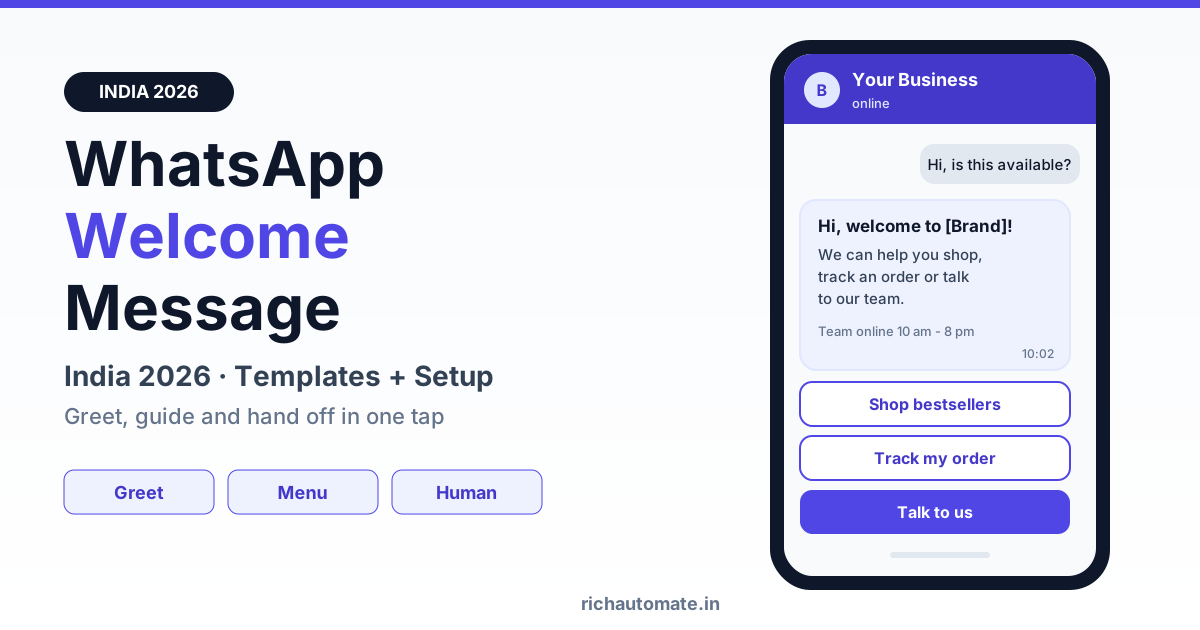
A good WhatsApp welcome message greets the customer, names your business, says in one line how you can help and offers 2-3 tap buttons plus a clear way to reach a human, all in under about 60 words. Send it only on the first message or after a long gap, match it to where the customer came from (ad, website widget, QR code or link), and because the customer started the chat, Meta does not charge for your service replies inside the 24-hour window.
The first reply a customer gets on WhatsApp sets the tone for the whole conversation. This guide covers what to send, how the WhatsApp Business app greeting compares with an API welcome flow, the cost math, entry-point greetings, menus, language, opt-in, human handoff, after-hours variants, 12 ready-to-copy templates for Indian verticals, common mistakes and the metrics that tell you whether your welcome is working.
What to send the first time a customer messages you
A welcome message has one job: get the customer to the right answer or the right person in as few taps as possible. It is not a brochure. Every strong welcome message has the same five parts:
- Greeting and identity. "Hi, welcome to [Business Name]" confirms they reached the right business. Use the customer's WhatsApp profile name if you have it, but never guess.
- One line of value. What can you help with right now? "We can help you check prices, track an order or book a service visit."
- A menu. Two or three reply buttons, or a list if you genuinely have more options. Buttons turn a blank chat into a one-tap choice.
- A human option. "Talk to our team" should always be one tap away. Some customers will never use a bot menu, and that is fine.
- Expectation setting. "Our team replies within 10 minutes, 10 am to 8 pm." People are far more patient when they know when a person will respond.
What to leave out: long paragraphs about your history, three emojis per line, a request for name, email, city and budget before you have helped with anything, and links to five different pages. Ask for details later, once the customer has picked a path and you know which details matter.
WhatsApp Business app greeting vs API welcome flow
There are two ways to automate a welcome message on WhatsApp, and they are very different tools. The free WhatsApp Business app has a built-in greeting message. The WhatsApp Business API, used through a platform, lets you build a full welcome flow with buttons, branching and routing.
| Factor | Business app greeting message | Business API welcome flow |
|---|---|---|
| Trigger | First message, or after 14 days of no activity | Any rule you define: first message, inactivity period, keyword, entry point |
| Format | Plain text only | Text, image or video header, reply buttons, list menus |
| Branching | None, the same text for everyone | Different paths per button, language, entry point or time of day |
| Team use | One phone plus a few linked devices | Shared team inbox with multiple agents |
| Human handoff | Manual, whoever checks the phone | Button or keyword routes the chat to an agent |
| After-hours logic | Separate away message with a schedule | Built into the flow with its own menu and promises |
| Best for | Very small shops with a handful of chats a day | Businesses running ads, multiple agents or high chat volume |
When to move from the app to the API
The app greeting is a fine start for a single-owner shop. Move to the API when more than one person answers chats, when you run Click-to-WhatsApp ads, when the same five questions fill your day, or when leads arrive after hours and wait until morning. A platform with a WhatsApp auto-reply and welcome flow builder lets you do all of this without code.
The 24-hour window: why welcome replies cost almost nothing
Meta's WhatsApp pricing works in your favour for welcome messages. When a customer messages you, a 24-hour customer service window opens. Inside that window you can send free-form replies, including interactive buttons and lists, and Meta does not charge for these service messages. Every new customer message restarts the 24-hour clock.
Charges apply to template messages, the pre-approved messages you send to start a conversation or to reach someone outside the window. Meta charges these per message by category: marketing, utility and authentication, with marketing typically the most expensive. Separately, when a conversation starts from a Click-to-WhatsApp ad or a Facebook Page call-to-action, Meta's free entry point rules can keep messages free for a longer window, so check Meta's current rate card for your market.
The practical takeaway is simple: a welcome flow that answers questions, shares a catalogue link and books a visit inside the window carries no Meta fee. Your platform may add a small fee. On RichAutomate, there is ₹0 setup and ₹0 monthly fee; Client Pay costs ₹0.10 per message, so a 6-message welcome and FAQ exchange costs about ₹0.60. If you later follow up with templates on SaaS Pay, that is ₹1.20 per marketing message and ₹0.30 per utility message. Full details are on the RichAutomate pricing page.
Match the greeting to the entry point
A customer who tapped a sale ad on Instagram expects something different from someone who scanned a QR code at your clinic reception. With the API you can detect the entry point, from the ad referral data or the pre-filled text in a click-to-chat link, and greet accordingly.
| Entry point | What the customer expects | Welcome should |
|---|---|---|
| Click-to-WhatsApp ad | The offer or product they just saw | Mention the offer by name, show price or a catalogue button, ask one qualifying question |
| Website chat widget | Help with the page they were reading | Reference the page topic, offer pricing, demo or support buttons |
| QR code (store, packaging, reception) | A quick action where they are standing | Offer the in-context task: check in, register a warranty, leave feedback, get the menu |
| Click-to-chat link (bio, email, SMS) | A general conversation | Standard welcome with 3 main buttons and a human option |
| Saved number, no context | Often a returning customer | Short greeting, "Track order" or "Talk to us" first, not a sales pitch |
The easiest way to tag entry points is pre-filled text. A link such as wa.me/91XXXXXXXXXX?text=Hi%20I%20saw%20the%20Diwali%20offer lets your flow match the phrase and send the right greeting. Our free click-to-WhatsApp link generator builds these links for you, and our guide to WhatsApp QR codes and click-to-chat links shows how to use a different pre-filled phrase per poster, counter or packaging insert so each source gets its own welcome and its own numbers.
Build the menu: buttons, lists and the human option
WhatsApp gives you two interactive formats for the welcome. Reply buttons allow up to 3 options, each with a short title of about 20 characters, and they appear right under the message so they get tapped more easily. List messages allow up to 10 rows behind a single "View options" button and suit businesses with many services, such as a multi-speciality clinic or a coaching institute with several courses.
Rules of thumb for Indian businesses:
- Use 3 buttons when your top three needs cover most chats. For D2C that is often "Shop", "Track order" and "Talk to us".
- Use a list when you have 4-10 genuinely different paths, and keep row titles plain: "Book appointment", not "Unlock your wellness journey".
- Put the most common need first. Look at your last 100 chats to find it.
- Never hide the human option inside a submenu.
For a deeper look at formats and limits, read our guide to WhatsApp reply buttons, list messages and flows.
Get a 1-minute BSP audit on WhatsApp
Drop your WhatsApp number — we line-item your current invoice against Meta India rates in under 60 seconds. India-hosted, DPDP-compliant.
Routing to a human
Give customers three ways to reach a person: a "Talk to our team" button in the welcome, keyword triggers such as agent, call me, human or baat karni hai, and an automatic handoff when the bot fails to understand twice in a row. Route the chat to a shared team inbox, assign it to an agent or a department, and tell the customer what happens next: "Someone from our sales team will reply in a few minutes." If nobody is available, say so honestly and give a time.
Language choice: Hindi, English or regional
India is multilingual, and your welcome should respect that without becoming a wall of text in three scripts. Start in the language of the entry point: a Hindi ad gets a Hindi or Hinglish greeting, an English website gets English. Add a language button such as "English", "हिंदी" or your regional language, and keep the rest of the flow in whatever the customer picks. Store the choice so agents and later follow-ups use it too. Button titles in Devanagari or other scripts work fine, but keep them short.
Opt-in capture and after-hours variants
The welcome is the most natural place to ask for permission to message the customer later. Meta requires businesses to get opt-in before sending business-initiated template messages, and a clear opt-in also keeps customers from blocking or reporting you. Ask once, in plain words, after you have helped: "Want updates on new arrivals and offers on WhatsApp? Yes, send updates / No thanks." Record the answer with a timestamp and the source. Never pre-tick consent or bury it in a long message.
After-hours chats deserve their own welcome. Instead of promising "we will reply shortly" at 11:30 pm, say when the team is back, let the customer leave their question or book a slot, and offer self-service answers for common questions like price lists, location and order status. Our full guide to after-hours and holiday auto-replies covers schedules, festival holidays and escalation.
12 ready-to-copy welcome message templates for Indian businesses
These are free-form welcome replies sent inside the 24-hour window, so they do not need Meta template approval. Swap in your details. Items in square brackets are reply buttons or list rows. If you personalise with the customer's name or order details, our guide to WhatsApp template variables and personalisation explains how to do it safely.
1. Retail and D2C brand
Hi, welcome to [Brand]! Looking for something special today? Tap below and we will help you in seconds. Our team is online 10 am to 8 pm. [Shop bestsellers] [Track my order] [Talk to us]
2. Clinic or diagnostic centre
Namaste, thank you for contacting [Clinic Name]. We can help you book an appointment, check test reports or find our timings. For a medical emergency, please call [number] or visit the nearest hospital. [Book appointment] [Reports and timings] [Talk to reception]
3. Coaching institute
Hi, welcome to [Institute]! Are you looking for a course for yourself or for your child? Pick an option and we will share batch timings and fees. [Courses and fees] [Book free demo class] [Talk to a counsellor]
4. Real estate developer or broker
Hi, thanks for your interest in [Project Name], [Location]. We can share the brochure, floor plans and price details right here. [Get brochure] [Book site visit] [Talk to an advisor]
5. Restaurant or cloud kitchen
Hi, welcome to [Restaurant]! Hungry? See today's menu, reserve a table or ask us anything. Kitchen open 12 pm to 11 pm. [View menu] [Reserve a table] [Talk to us]
6. Travel agency
Hi, welcome to [Agency]! Planning a trip? Tell us where you want to go and we will send options that fit your dates and budget. [Holiday packages] [Flights and visa help] [Talk to a travel expert]
7. Salon or spa
Hi, welcome to [Salon Name]! Book your next appointment in under a minute or check today's offers. [Book appointment] [Services and prices] [Talk to us]
8. CA firm or financial services
Hello, thank you for contacting [Firm Name]. We help with GST filing, income tax returns, company registration and accounting. Please do not share passwords or OTPs on this chat. [Our services] [Book a consultation] [Talk to our team]
9. Auto dealer or service centre
Hi, welcome to [Dealership], [City]. Looking for a new vehicle or booking a service? [Book test drive] [Book service] [Talk to sales]
10. School, college or edtech
Hi, welcome to [School or College]! Admissions for [Session] are open. Get the prospectus, fee details or speak with our admissions desk. [Admission details] [Fee structure] [Talk to admissions]
11. Click-to-WhatsApp ad greeting (any vertical)
Hi, thanks for tapping our [Offer Name] ad! The offer is valid till [date]. Want to see the options now? [Show me the offer] [Check price] [Talk to us]
12. After-hours welcome (any vertical)
Hi, thanks for messaging [Business]. Our team is offline right now and will reply after [time] tomorrow. Meanwhile, you can pick an option below or type your question and we will pick it up first thing. [Prices and timings] [Book a callback] [Leave a message]
Common mistakes and how to fix them
Most weak welcome messages fail in the same few ways. Here is a quick checklist to review your current setup.
| Mistake | Why it hurts | Fix |
|---|---|---|
| Blank or "Hi" only welcome | Customer does not know what to do next | Add one value line and 2-3 buttons |
| Long welcome with history and offers | Nobody reads it on a phone, key options get buried | Stay under about 60 words, move details behind buttons |
| Asking name, email, city and budget up front | Feels like a form, customers drop off | Help first, ask 1-2 questions only when needed |
| No human option | Frustrated customers leave or complain | "Talk to us" button plus keyword handoff |
| Welcome on every incoming message | Menu repeats mid-conversation, looks broken | Trigger only on first message or after 7-14 days of inactivity |
| Same greeting for every source | Ad clickers do not see the offer they came for | Entry-point greetings using ad data or pre-filled text |
| Promising "instant reply" at midnight | Broken promise, lower trust | After-hours variant with a real reply time |
Metrics that tell you if your welcome is working
Review a few numbers weekly, split by entry point:
- First-response time. The automated welcome should arrive in seconds. Also track time to the first human reply when a customer taps "Talk to us"; aim for minutes, not hours, during working time.
- Menu tap rate. The share of new chats where the customer taps a button or list row. A low tap rate usually means unclear labels or too many options.
- Drop-off after the welcome. The share of customers who never reply after the first message. Compare sources: a high drop-off on one ad often points to a mismatch between the ad and the greeting.
- Handoff and resolution rate. How many chats reach a human, and how many are resolved or converted.
Once the welcome is working, the next step is turning replies into sales-ready leads. Our WhatsApp lead qualification and scoring playbook shows how to add 2-4 short questions after the welcome and route hot leads to your team fast.
Set up your WhatsApp welcome flow on RichAutomate
RichAutomate gives Indian businesses the WhatsApp Business API with auto-reply and welcome flows, reply button and list menus, a visual flow builder, a shared team inbox for human handoff, broadcast campaigns for opted-in customers and a free click-to-WhatsApp link generator for entry-point greetings. It is usage-only: ₹0 setup, ₹0 monthly, and ₹0.10 per message on Client Pay. Build your welcome, after-hours and entry-point variants in an afternoon. Create your free RichAutomate account and have your first automated welcome live this week.