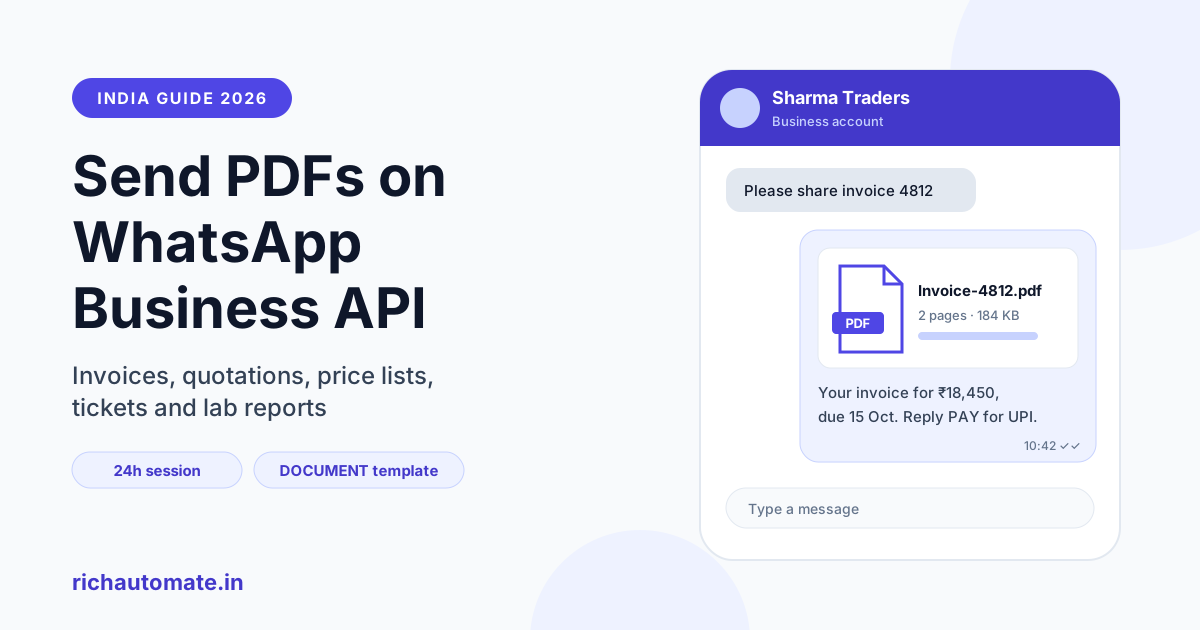
To send a PDF on WhatsApp Business API, you send a document message: a free-form document when the customer has messaged you in the last 24 hours, or an approved template with a DOCUMENT header when that window is closed. You attach the file as a public HTTPS link or an uploaded media ID, give it a filename the customer will see, and add an optional caption.
That one capability covers a surprising share of Indian business messaging. A Surat textile trader sends the new season's price list, a Pune diagnostic clinic sends lab reports, a Jaipur travel agency sends e-tickets and hotel vouchers, and a Ludhiana auto-parts distributor sends GST invoices the moment an order is billed. This guide explains how document messages work, what they cost, the file rules that trip people up, and how to send them from a dashboard or through the API.
What a WhatsApp document message is
WhatsApp Business API supports several media message types: image, video, audio, sticker and document. A document message carries a file, usually a PDF, that the customer sees as a card in the chat with a file icon, the filename, the page count or size, and a download button. Tapping it opens the file in WhatsApp's viewer or the phone's PDF app.
Three parts make up a document message:
- The file, supplied either as a link to a publicly reachable HTTPS URL or as the ID of media you have already uploaded to Meta.
- The filename, which is what the customer sees on the card. Without it, the file may show a generic name that looks like spam.
- The caption, a short line of text under the card. Use it to say what the file is and what to do next.
PDF is the safest format because it opens the same way on every phone. Meta also accepts common office formats such as Word, Excel and PowerPoint files and plain text, but a customer on a basic Android phone may not have an app that opens a .xlsx file properly. If the document matters, convert it to PDF first.
Two ways to send a PDF: session document vs document template
WhatsApp's rules depend on whether the customer has messaged you recently. When a customer sends you a message, a 24-hour customer-service window opens. Inside it, you can reply with any content, including a free-form document. Once it closes, you can only start a conversation with a pre-approved template.
| Point | Session (free-form) document | Template with DOCUMENT header |
|---|---|---|
| When you can send it | Only within 24 hours of the customer's last message | Any time, to an opted-in customer |
| Needs Meta approval | No | Yes, the template is reviewed once; the PDF itself is attached at send time |
| Text around the file | Free-form caption | Approved body text with variables, plus optional footer and buttons |
| Meta charge | Free, as a service reply | Charged per message by category, utility or marketing |
| Typical use | Customer asks for a brochure, quotation or report and you reply | Invoice after billing, ticket after booking, report ready notification |
A useful habit: whenever a customer asks for a document, reply with it right away. The customer opened the window, so the reply is free from Meta, and the file arrives while they are still looking at the chat. Our guide to 24-hour window cost optimization goes deeper into designing flows that keep more of your messages inside that window.
For the template route, the header type is fixed as DOCUMENT when you create the template, but the actual PDF changes with every send. You submit a sample file during review, and at send time you pass the real invoice or ticket. The body can carry variables, such as the customer's name, invoice number and due date, which we cover in our guide to template variables and personalization.
What sending a PDF costs in India
Meta charges business-initiated template messages by category, and those rates are set by Meta and change from time to time. Service replies, meaning your messages inside the 24-hour window after the customer wrote to you, are free from Meta. A document costs the same as any other message of its type; there is no extra fee for attaching a file.
On RichAutomate there is ₹0 setup and ₹0 monthly platform fee. You pick one of two billing modes:
- SaaS Pay: an all-in price of ₹1.50 per marketing message and ₹0.50 per utility message, with Meta's charge included.
- Client Pay: you pay Meta directly on your own payment method, and RichAutomate charges ₹0.10 per message.
If you prefer a fixed plan, Starter is ₹499 per month. The trade-offs between the two billing modes are explained in Client Pay vs SaaS Pay, and current numbers are always on our WhatsApp Business API pricing page. Here is an illustrative monthly estimate for four businesses. The volumes are examples for planning, not benchmarks.
| Business | Document | Monthly volume | Message type | Estimated cost on SaaS Pay |
|---|---|---|---|---|
| Ludhiana auto-parts distributor | GST invoice PDF after billing | 2,000 | Utility template | 2,000 × ₹0.50 = ₹1,000 |
| Surat textile trader | Season price list to opted-in retailers | 1,500 | Marketing template | 1,500 × ₹1.50 = ₹2,250 |
| Jaipur travel agency | E-tickets and vouchers for offline bookings | 600 | Utility template | 600 × ₹0.50 = ₹300 |
| Pune diagnostic clinic | Lab report sent when the patient asks | 800 | Service reply in the 24h window | Free from Meta; platform fee as per your plan |
On Client Pay, the same volumes would cost Meta's current rate for each category, paid to Meta, plus ₹0.10 per message to RichAutomate. For the clinic's 800 service replies, that platform charge would be ₹80.
File rules: format, size, filename and caption
Most failed document sends come down to the file. Get these right before you build anything.
Format and MIME type
Send PDFs as application/pdf. If your server serves the file with the wrong content type, for example text/html or application/octet-stream, Meta may reject it or the customer may get a file that will not open. Check the response headers of your file URL, not just the extension.
Size
Meta's documented limit for documents is currently up to 100 MB; check the current Cloud API documentation before relying on it. The practical limit is lower. A 40 MB catalogue is technically allowed but many customers on patchy mobile data will never finish downloading it. Aim for a few MB. Compress scanned pages, flatten images, and split a large catalogue into sections, such as sarees, dress material and kurtis, rather than one heavy file.
Filename
The filename shows on the card in the chat, so treat it as part of the message. Compare scan_00231.pdf with Invoice-INV2026-0412-Sharma-Traders.pdf. A clear name tells the customer what it is before they tap, helps them find it later in WhatsApp's media section, and looks less like spam. Avoid special characters and very long names.
Caption
Keep the caption to one or two lines: what the document is and the next step. For example, "Your invoice for order 4812, ₹18,450, due 15 Oct. Reply PAY for a UPI link." In a template, this text lives in the approved body instead.
Password protection
Password-protected PDFs work, but many customers do not know the password convention or cannot open protected files in WhatsApp's viewer. If you must protect a file, state the password pattern in plain words, such as "first four letters of your name plus birth year", and test it on a basic phone.
Document use cases by industry
Almost every industry in India has at least one document it sends over and over. The category below is the usual outcome; Meta makes the final call at template review, so keep each template focused on one purpose.
Get a 1-minute BSP audit on WhatsApp
Drop your WhatsApp number — we line-item your current invoice against Meta India rates in under 60 seconds. India-hosted, DPDP-compliant.
| Industry | Document | Usual template category | Trigger |
|---|---|---|---|
| Wholesale and distribution | GST invoice | Utility | Invoice generated in billing software |
| B2B manufacturing | Quotation for a specific enquiry | Utility | Quote approved by the sales team |
| Textile and apparel trading | Price list or new-collection catalogue | Marketing | New season launch or rate revision |
| Diagnostics and clinics | Lab report | Utility | Report marked ready in the lab system |
| Travel and tourism | E-ticket, hotel voucher, itinerary | Utility | Booking confirmed |
| Insurance | Policy document, renewal notice | Utility | Policy issued or renewal due |
| Real estate | Project brochure, floor plans | Marketing | Lead enquiry or site-visit booking |
| Education and coaching | Fee receipt, admit card | Utility | Payment received or exam scheduled |
Two of these deserve their own playbooks. For sales teams that send quotes and then chase them, see our guide to WhatsApp quotation follow-up for B2B sales. For distributors and wholesalers who bill daily, our guide to WhatsApp GST invoice automation covers connecting billing software so every invoice goes out without anyone forwarding it by hand.
How to send a PDF from a no-code dashboard
If your team does not write code, you can send documents from a dashboard such as RichAutomate's. The steps are roughly the same on any platform.
- Connect your WhatsApp Business number through Meta's embedded signup and complete business verification.
- For one-off replies, open the customer's chat in the shared inbox. If the 24-hour window is open, attach the PDF, check the filename, type a caption and send.
- For repeat documents, create a template, choose DOCUMENT as the header, write the body with variables, such as the customer name and invoice number, upload a sample PDF and submit it for review.
- Send the template to one contact from the chat, or to a list as a campaign, attaching the right file for each recipient.
- Automate it with a flow or integration, so a new invoice, booking or report triggers the template with that customer's file.
The Surat trader's case shows how this plays out. Their team uploads the revised price list once, sends a marketing template to retailers who opted in at the shop counter, and replies to any retailer who asks "rate list bhejo" with the same PDF inside the window, at no Meta charge.
How to send a PDF through the API
Developers use Meta's Cloud API document message type. You can send the file in one of two ways.
Option 1: a public HTTPS link
Put the PDF at a URL Meta's servers can reach over HTTPS and pass it as the document's link, along with the filename and optional caption. Meta fetches the file when you send. This is quick to build, but the URL must stay reachable until Meta has fetched it, must return the right content type, and must not sit behind a login.
Option 2: upload first, then send by media ID
Upload the file to Meta's media endpoint for your phone number. Meta returns a media ID, and you pass that ID as the document's id, again with filename and caption. This is the better choice for private files, because the document never needs a public URL. Uploaded media is kept by Meta only for a limited period, so upload close to send time rather than weeks in advance.
In both cases the message body sets the type to document and includes a document object carrying either link or id, plus filename and caption. For a template, the PDF goes into the header component as a document parameter, and the body variables are passed in the body component. Keep your own record of which file went to which customer, since you will need it for support questions and audits.
Tracking delivery and read status
Each document message returns a message ID, and Meta then sends status webhooks as the message moves from sent to delivered to read, or to failed with an error code. A good dashboard shows these ticks per message and per campaign, so your team can see which customers opened their invoice and which never received it.
Use that status data. For the Ludhiana distributor, an invoice that stays unread for three days is a reason for a polite follow-up from the sales rep. For the Pune clinic, a failed report delivery should create a task for the front desk to call the patient. Read receipts depend on the customer's privacy settings, so treat a missing read tick as unknown, not ignored.
Common failures and how to fix them
When a document send fails, the error code in the webhook usually points to the cause. These are the ones we see most often:
- Wrong MIME type. The server returns the file as text/html or a generic binary type. Fix the content-type header, or upload the file and send by media ID.
- Expired or unreachable link. Signed URLs that expire in seconds, files behind a login, or links that redirect to an error page all fail. Give the link enough time for Meta to fetch it and test it from outside your network.
- Oversized file. The file is over Meta's limit, or so large the customer never downloads it. Compress it or split it.
- Password-protected PDF the customer cannot open. Delivery succeeds but the customer replies that the file is broken. Remove the password or explain the pattern clearly in the caption.
- Template header mismatch. The template was approved with a DOCUMENT header but the send passes an image, or no header at all. The header parameter must match the approved template exactly.
- Expired media ID. The file was uploaded long before sending. Upload again and use the new ID.
For a step-by-step walk-through of upload errors and their codes, see our guide to fixing WhatsApp API media upload failures.
Security, consent and DPDP for sensitive documents
Invoices, lab reports and policy documents contain personal data, and the Digital Personal Data Protection Act, 2023 expects you to collect it for a clear purpose, share only what is needed, and protect it. A few practical rules:
- Get consent for the channel. Ask customers whether they want documents on WhatsApp, record that opt-in with a timestamp, and honour opt-outs quickly.
- Avoid permanent public links. A lab report sitting at a guessable public URL forever is a data leak waiting to happen. Use short-lived signed URLs or upload to get a media ID, and remove temporary files after delivery.
- Send to the number on record. Match the recipient to the verified number in your system, not a number typed into a chat by someone claiming to be the customer.
- Minimise what goes in the caption. Put details inside the PDF, not in the notification text that may show on a locked screen. "Your report is ready" is enough.
- Restrict team access. Only staff who need to see reports or policy documents should be able to open them in the shared inbox.
Healthy consent practices also protect your number's quality rating. No provider can promise a number will never be restricted, but businesses that message only customers who asked, and send documents those customers expect, rarely run into trouble. This is general guidance, not legal advice; ask your counsel to review how you handle health and financial documents.
RichAutomate gives Indian businesses the WhatsApp Business API with a shared inbox, DOCUMENT-header templates and a no-code flow builder, with ₹0 setup and ₹0 monthly platform fee. Start your 14-day free trial with 100 free credits and send your first PDF invoice, quotation or report today.