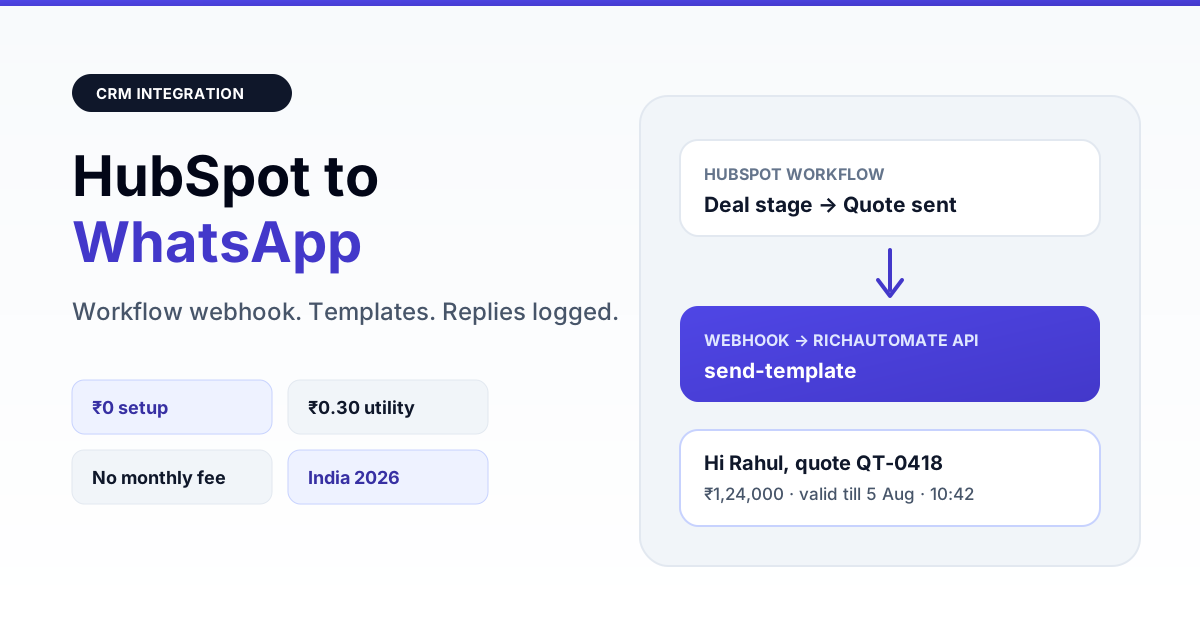
The fastest way to connect HubSpot to WhatsApp in India is a HubSpot workflow that fires a webhook to a WhatsApp Business API platform, which sends a Meta-approved template to the contact. Replies flow back into HubSpot as notes, so reps work from one timeline while you pay only per message, with ₹0 setup and no monthly minimum.
This guide compares the three ways Indian teams wire HubSpot to WhatsApp, walks through the workflow-webhook setup step by step, and shows the real rupee cost of running it. If you are still choosing a CRM, start with our best WhatsApp CRM for India comparison; if you run several CRMs, the HubSpot, Zoho and Salesforce WhatsApp integration overview covers all three side by side.
What actually connects HubSpot to WhatsApp
HubSpot is where your contacts, deals and lifecycle stages live. WhatsApp messages can only be sent at scale through Meta’s WhatsApp Business Platform, via a provider that holds your number, your approved templates and your wallet. The integration is the bridge between a HubSpot event (form submitted, deal stage changed, ticket closed) and a WhatsApp send, plus the return path for replies.
There are three common bridges:
| Route | How it works | Best for | Watch out for |
|---|---|---|---|
| HubSpot WhatsApp channel / marketplace app | Connect a number inside HubSpot and chat from the inbox | Small teams living fully inside HubSpot | Tier requirements, limited chatbot and campaign reporting, pricing not in rupees |
| Middleware (Zapier, Make, n8n) | A tool watches HubSpot and calls the WhatsApp API | Teams without webhook access in their HubSpot plan | Extra task costs, polling delays, one more thing to monitor |
| Workflow webhook + WhatsApp API platform | HubSpot workflow posts directly to RichAutomate’s API | Sales and support teams sending templates at volume | Needs a HubSpot tier with the webhook action and a one-time field mapping |
If your plan lacks the webhook action, the middleware route is the practical fallback; our n8n WhatsApp integration guide shows a self-hosted version with no per-task fees.
Step-by-step: HubSpot workflow to WhatsApp template
1. Get your WhatsApp number and API key ready
Create a RichAutomate account, connect your WhatsApp Business number through Meta’s embedded signup and generate an API key under developer settings. Numbers going live need business verification; the trial works without it.
2. Get templates approved first
Every message that starts a conversation must be a Meta-approved template. Create them before building the workflow: a lead welcome (marketing), a meeting confirmation (utility), a quote-sent notice (utility) and a payment reminder (utility). Keep variables simple, such as name, date and amount.
3. Store phone numbers in E.164 format
HubSpot phone fields are free text, so you will find “98765 43210”, “+91-9876543210” and “09876543210” in the same database. Normalise them to 919876543210 with a workflow “format data” step or a one-time cleanup import. Wrong formats are the number one cause of failed sends.
4. Build the workflow and add the webhook action
In HubSpot, create a contact- or deal-based workflow, set the enrollment trigger (for example, deal stage becomes “Quote sent”) and add a “Send a webhook” action with method POST and this body:
POST https://richautomate.in/api/v1/send-template
Authorization: Bearer

{
  "phone": "919876543210",
  "template": "deal_quote_sent",
  "language": "en",
  "variables": ["Rahul", "QT-2026-0418", "1,24,000", "5 August"]
}
Map phone and the variables to HubSpot properties. Test with your own contact before switching the workflow on.
5. Send replies back into HubSpot
Set RichAutomate’s inbound webhook to a small endpoint or n8n flow. It looks up the contact with HubSpot’s search API by phone and creates a note associated with that contact:
POST https://api.hubapi.com/crm/v3/objects/notes
Authorization: Bearer

{
  "properties": {
    "hs_timestamp": "2026-09-17T10:42:00Z",
    "hs_note_body": "WhatsApp reply: Please share the revised quote with GST split."
  }
}
Then associate the note with the contact ID. Make the endpoint idempotent on the WhatsApp message ID so retries never create duplicate notes; the webhook reliability guide covers the pattern.
Get the India 2026 WhatsApp BSP price comparison
Wati vs AiSensy vs Interakt vs RichAutomate: Meta rates, platform fees and hidden costs, side by side. We send it to your WhatsApp in a minute.
Try it on your own HubSpot data. Start a 14-day trial with 100 free credits, connect your number and send your first template from a HubSpot workflow today.
Six HubSpot events worth automating first
- New form lead: instant WhatsApp welcome with a brochure or booking link while intent is highest.
- Meeting booked: confirmation plus a reminder two hours before, which cuts no-shows.
- Deal stage “Quote sent”: quote number and amount, so the buyer can reply with questions.
- Invoice or payment due: polite reminder with a payment link.
- Ticket closed: one-tap satisfaction check.
- Lifecycle stage becomes customer: onboarding checklist and support contact.
Start with two utility flows. They are cheaper, get higher reply rates and build the habit before you add marketing sends.
For each workflow, add a re-enrollment rule only where it makes sense. A payment reminder can re-enroll every cycle, but a welcome message should fire once per contact. Add a suppression list for contacts who replied “stop” or were marked unqualified, and log a “last WhatsApp sent” date property from the webhook response so reps can see at a glance when the contact was last messaged. When a send fails, the API returns an error you can capture in a workflow branch: invalid number, template paused or balance low. Route those to a task for the contact owner instead of silently dropping them.
Templates, opt-in and the 24-hour window
Only message contacts who agreed to hear from you on WhatsApp. Add an explicit WhatsApp consent checkbox to HubSpot forms and store it as a contact property, then use it as an enrollment filter in every workflow. Our opt-in and list hygiene guide explains how to re-permission older lists.
When a contact replies, a 24-hour service window opens. Inside it your team can send free-form messages, and on RichAutomate SaaS Pay those replies cost ₹0 (about ₹0.115 at Meta on Client Pay). Outside it, you need a template again. Low-quality or unsolicited marketing sends lower your number’s quality rating, so keep marketing workflows tightly filtered.
What a HubSpot WhatsApp integration costs in India
RichAutomate is usage-only. There is no setup fee and no monthly floor, and you choose how Meta’s charges are billed:
| Item | SaaS Pay | Client Pay |
|---|---|---|
| Setup fee | ₹0 | ₹0 |
| Monthly minimum | ₹0 | ₹0 |
| Utility / authentication message | ₹0.50 | ₹0.10 + Meta charge billed to you directly |
| Marketing message | ₹1.50 | ₹0.10 + Meta charge billed to you directly |
| Replies inside 24-hour window | Free | Free |
Worked example: a B2B team sending 1,500 utility messages (quotes, meeting reminders, payment nudges) and 500 marketing messages a month on SaaS Pay pays 1,500 × ₹0.50 + 500 × ₹1.50 = ₹750 + ₹750 = ₹1,500, with no platform fee on top. Model your own mix with the WABA cost calculator, and read Client Pay vs SaaS Pay to decide which billing mode fits.
Rollout checklist
- WhatsApp number connected and business verification submitted.
- Two utility templates and one marketing template approved.
- Phone numbers normalised to 91XXXXXXXXXX in HubSpot.
- WhatsApp consent property added to forms and used as a workflow filter.
- Workflow webhook tested on an internal contact.
- Inbound replies writing notes to the right contact, with no duplicates on retry.
- Weekly check of delivery, read and reply rates per workflow.
Start sending from HubSpot this week
You do not need to replace HubSpot or pay for a bigger tier to get WhatsApp into your sales process. Connect a number, approve a few templates, add one webhook action and pay only for the messages you send. Every account starts with a 14-day trial and 100 free credits.
Create your free account or compare plans on the pricing page.
If your LinkedIn ads sync into HubSpot, read our LinkedIn Lead Gen Forms WhatsApp integration guide for the CRM-first route.