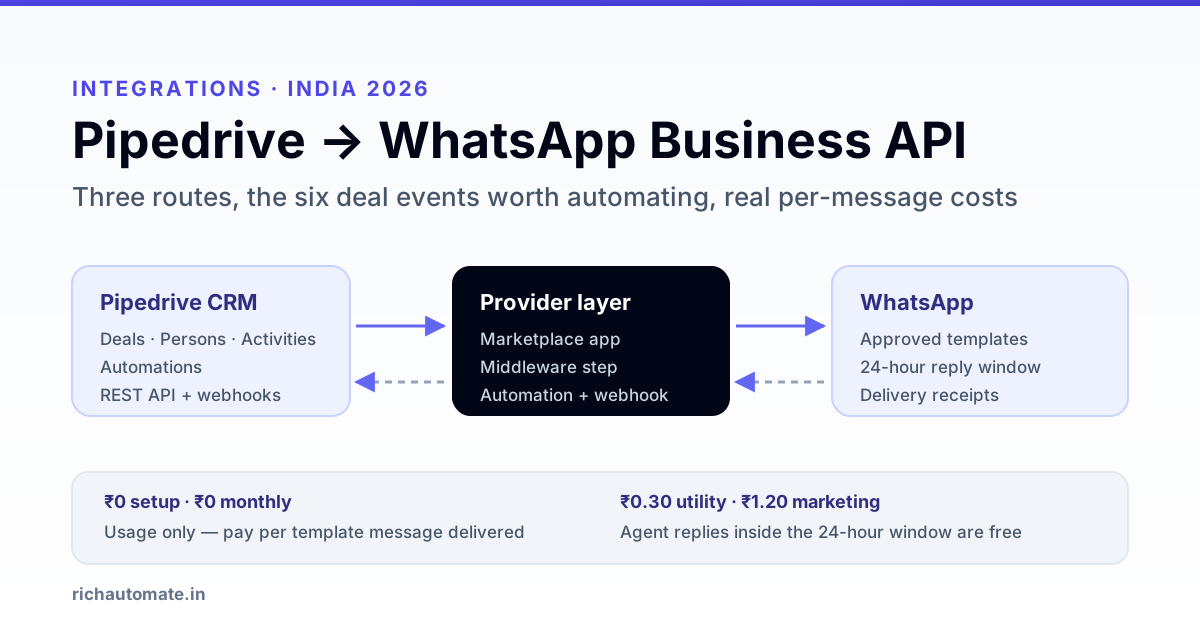
To connect Pipedrive to WhatsApp you need a WhatsApp Business API account and something that turns a Pipedrive event into an approved template send — either a Marketplace app, a middleware step, or a webhook fired straight from a Pipedrive Automation. There is no native WhatsApp channel inside Pipedrive, so the choice is really about who owns the message log and how much control you want over templates and cost.
This guide covers all three routes for Indian sales teams in 2026: what each one actually gives you, how to wire the webhook route end to end, which six Pipedrive events are worth automating first, and what the per-message bill looks like at real volumes.
What actually connects Pipedrive to WhatsApp
Pipedrive is a deal-pipeline CRM. It stores persons, organisations, deals, activities and notes, and it can fire Automations when something changes — a deal moves stage, an activity is marked done, a field is updated. What it cannot do is speak to WhatsApp on its own.
WhatsApp Business messaging runs through Meta's Cloud API. Every business-initiated message must use a template Meta has approved in advance, and free-form replies are only allowed inside a 24-hour window that opens when the customer messages you. So any Pipedrive-to-WhatsApp setup has three moving parts:
- The trigger — a Pipedrive Automation, or a polling middleware watching for changes.
- The provider — a WhatsApp Business Solution Provider holding your WABA, your verified sender number and your approved templates.
- The return path — delivery receipts and customer replies flowing back so your sales rep sees them, ideally as a Pipedrive note or activity.
Teams that skip the third part end up with a one-way megaphone: messages go out, replies land in a separate inbox nobody watches, and the deal record lies about what the customer said. The same failure shows up across every CRM — the pattern is worked through in our guide to WhatsApp CRM integration patterns.
The three ways to get Pipedrive onto WhatsApp
| Route | How it works | Best for | Watch out for |
|---|---|---|---|
| 1. Marketplace app | Install a WhatsApp app from the Pipedrive Marketplace. It adds a chat panel to the deal or person view and handles send plus receive. | Small sales teams who want reps chatting from inside Pipedrive with zero build. | You inherit the app vendor's template workflow and their per-seat pricing on top of Meta's per-message cost. |
| 2. Middleware | An automation platform watches Pipedrive for changes and calls your provider's send API. | Teams already running an automation tool, or those needing enrichment between CRM and send. | Task-based billing at high volume, and one more system to monitor. See the n8n WhatsApp integration walkthrough for the self-hosted version. |
| 3. Automation plus webhook | A Pipedrive Automation fires an HTTP request to your provider's send-template endpoint. Replies come back via your provider's webhook and get written into Pipedrive with the API. | Anyone who wants full control of templates, cost and message log — and the cheapest option at volume. | You own the plumbing: retries, field mapping, and writing replies back as notes. |
Route 3 is what most Indian teams settle on once volume passes a few hundred messages a month, because routes 1 and 2 both add a per-seat or per-task layer on top of a cost that is already per-message. If you are still choosing a CRM rather than wiring one, the shortlist is in best WhatsApp CRM for India, and the equivalent walkthroughs for neighbouring stacks are Bitrix24 WhatsApp integration and Freshsales WhatsApp integration.
Wiring route 3: Automations and webhooks
Step 1 — get the WhatsApp side ready first
Before touching Pipedrive, you need a verified WhatsApp Business account, a sender number that is not active on consumer WhatsApp, and at least one approved template. Template approval usually lands within a few hours but can take a day, so start here rather than discovering it at the end.
Step 2 — build the outbound Automation
In Pipedrive, create an Automation with a trigger such as Deal updated — stage changed to Proposal Sent. Add an HTTP request action pointing at your provider's send-template endpoint, and map Pipedrive fields into the template variables:
POST https://richautomate.in/api/v1/send-template
Authorization: Bearer <your_api_key>

{
  "phone": "919876543210",
  "template": "deal_quote_sent",
  "language": "en",
  "variables": ["Rahul", "QT-2026-0418", "1,24,000", "5 August"]
}
The phone value comes from the person's phone field. Normalise it before it leaves Pipedrive — Indian CRMs are full of numbers stored as 98765 43210, +91-9876543210 and 09876543210, and Meta wants digits with the country code and nothing else. A number that fails this check silently produces zero sends and no error anyone notices.
Step 3 — close the loop back into Pipedrive
Point your provider's inbound webhook at a small endpoint of your own that writes the customer's reply into Pipedrive as a note on the matching person, and optionally creates a follow-up activity for the deal owner:
Get the India 2026 WhatsApp BSP price comparison
Wati vs AiSensy vs Interakt vs RichAutomate: Meta rates, platform fees and hidden costs, side by side. We send it to your WhatsApp in a minute.
POST https://api.pipedrive.com/v1/notes?api_token=<token>

{
  "person_id": 4172,
  "deal_id": 8891,
  "content": "WhatsApp reply: Please share the revised quote with GST split."
}
Retry logic matters more than it looks. Webhook deliveries fail, and a dropped reply means a rep chases a customer who already answered. The failure modes and the fixes are catalogued in our guide to WhatsApp webhook reliability.
Step 4 — respect the rate limit
Pipedrive's API is rate limited per token, and bulk operations will hit the ceiling faster than you expect during an initial backfill. Queue your writes rather than firing them in a tight loop, and check the current limit for your plan in Pipedrive's developer docs before you size a migration.
The six Pipedrive events worth automating first
Do not try to automate the whole pipeline on day one. These six carry almost all of the value, in rough order of payback:
- New lead assigned — a first-touch message within minutes, while the enquiry is still warm. This single automation usually moves connect rates more than the other five combined.
- Quote or proposal sent — the quote reference, amount and validity date on WhatsApp, where it actually gets read, not buried in email.
- Activity reminder — a demo or site-visit confirmation the day before, which cuts no-shows sharply.
- Deal stalled — nothing has moved for N days, so a light nudge goes out and the deal owner gets an activity.
- Deal won — onboarding details, payment link, next steps, sent the moment the stage flips.
- Deal lost — a short, honest close-out that leaves the door open. Low volume, surprisingly high revival rate.
Each of these is a separate approved template. Utility templates covering transactional content clear review faster and cost less than marketing templates, so write them to describe the transaction rather than to sell.
Template approval, opt-in and the 24-hour window
Three rules decide whether this setup works or gets your number throttled:
- Opt-in is required. You must have a record that the person agreed to receive WhatsApp messages from you. A phone number sitting in Pipedrive is not consent. If you are switching on an old database, re-permission it first — the safe sequencing is in WhatsApp opt-in and list hygiene.
- Templates must be pre-approved. Variables are placeholders only; you cannot smuggle a paragraph into a variable slot. Rejected templates usually fail for promotional language in a utility category, or for placeholders with no example values.
- The 24-hour window is free. Once a customer messages you, your replies for the next 24 hours cost nothing. Structure the first template to invite a reply and a chunk of your conversation becomes free.
Watch your quality rating in the WhatsApp Manager after switching on automation. A drop is a signal to pause and look at which template is annoying people — not something to push through.
What it costs to run
Since Meta moved to per-message pricing in July 2025, you pay per template message delivered, by category. Service conversations — your replies inside the customer's 24-hour window — are free.
| Line item | RichAutomate | Notes |
|---|---|---|
| Setup | ₹0 | No onboarding fee |
| Monthly platform fee | ₹0 | Usage only |
| Utility template (SaaS Pay) | ₹0.50 | Quotes, reminders, order updates |
| Marketing template (SaaS Pay) | ₹1.50 | Offers, re-engagement |
| Client Pay | ₹0.10 per message | You hold the Meta billing, we charge a platform fee only |
| Agent replies in the 24-hour window | Free | Meta charges nothing for service messages |
A worked example: a 12-rep sales team sending 3,200 utility messages and 400 marketing messages a month pays roughly ₹960 plus ₹480, so about ₹1,440 a month on SaaS Pay. Model your own mix with the WhatsApp API cost calculator, and read Client Pay vs SaaS Pay billing before deciding which side of the meter you want to sit on.
Whatever the Marketplace app or middleware charges sits on top of this. That gap is the whole argument for route 3 once you are past a few thousand messages a month.
Your Pipedrive to WhatsApp rollout checklist
- Verify your business with Meta and get a sender number that is not on consumer WhatsApp.
- Clean the phone field in Pipedrive — country code, digits only, no spaces or dashes.
- Confirm you hold opt-in for the segment you intend to message, and re-permission the rest.
- Write and submit the first three templates: new lead, quote sent, activity reminder.
- Build one Automation end to end and test it on your own number before touching a real deal.
- Wire the inbound webhook so replies land back on the person record as notes.
- Start at a few hundred messages a day, watch the quality rating, then scale.
- Review after two weeks: which template gets replies, which gets blocks, and drop the latter.
Ready to wire it up? Start a free trial — no card needed — or see the full rate card on pricing.