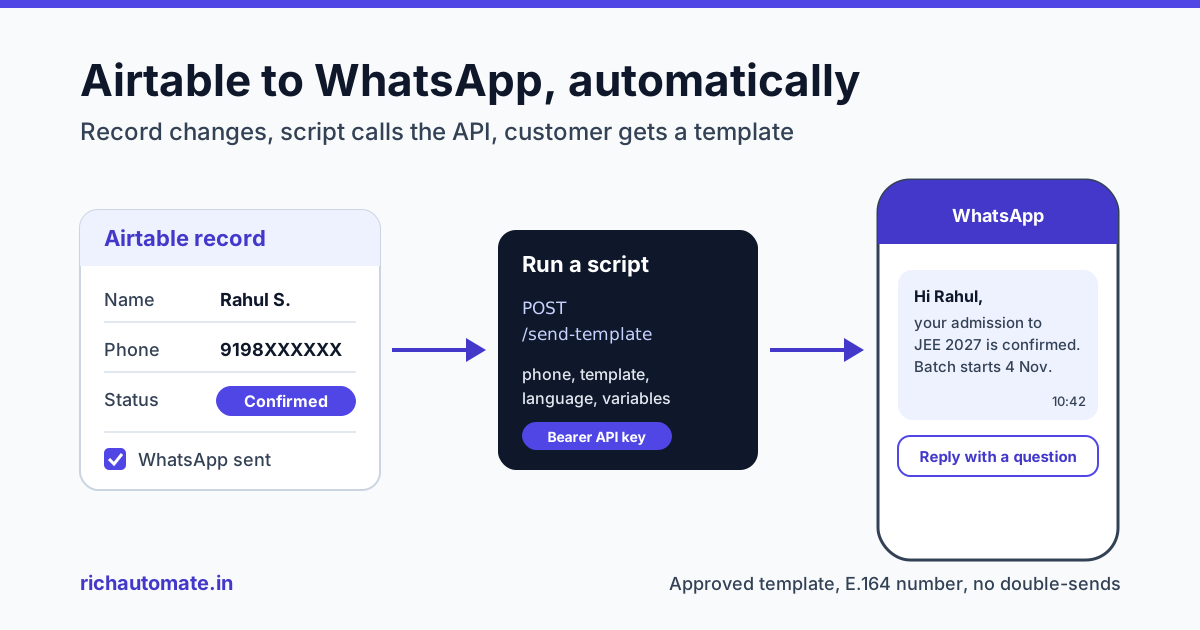
To send WhatsApp messages from Airtable, add an Airtable automation that fires when a record changes, then use the "Run a script" action to call a WhatsApp Business API with the record's phone number and an approved template. The customer gets "admission confirmed", "order packed" or "site visit booked" on WhatsApp seconds after your team updates the record. This guide covers the three ways to connect Airtable to WhatsApp, a working script you can paste, how to stop double-sends, and what it costs per month in rupees.
Many Indian teams run operations in Airtable, but their customers live on WhatsApp. Today someone copies a number from a record and types the same update forty times a day. An automation does it the moment the status field changes, from your own business number.
How Airtable WhatsApp automation works
Every working setup has the same four parts:
- Trigger: an Airtable automation that runs when a record is created, updated, or moves into a state you define, for example Status = "Admission confirmed".
- Caller: something that turns that record into an HTTPS request. This is usually Airtable's own "Run a script" action, or an outside tool such as Zapier, Make or Pabbly Connect.
- Sender: a WhatsApp Business API account that sends a Meta-approved template to the customer's number.
- Reply handling: when the customer answers ("Can I change my batch?"), the reply lands in a shared team inbox or a chatbot flow.
RichAutomate is the sender and the reply inbox in this chain. RichAutomate has no built-in Airtable connector. Airtable connects the way any outside system does, through one of three routes:
| Route | How it works | Best for | Extra tool cost |
|---|---|---|---|
| A. Run a script action | Airtable script calls POST /api/v1/send-template with a Bearer API key, the phone, the template name and its variables | Teams comfortable pasting 30 lines of JavaScript | None beyond your Airtable plan |
| B. Flow trigger | Airtable script posts {phone, name, data} to a chatbot flow's Incoming Webhook trigger, POST /api/v1/public/flows/{token}/trigger | When the first message should start a conversation (buttons, questions, follow-ups) | None beyond your Airtable plan |
| C. Zapier, Make or Pabbly | The middleware watches Airtable and calls the RichAutomate API in a no-code step | Teams that already pay for one of these and do not want code | Your middleware plan |
Route A is the one this guide builds, because it keeps everything inside Airtable and adds no monthly tool fee. If you prefer a no-code builder, the same template call works from our Zapier WhatsApp integration setup guide or the Make.com WhatsApp integration guide. Teams that self-host their automations can follow the n8n WhatsApp integration guide instead.
What Airtable automations can do (and their limits)
Before you build, know the box you are working in. Per Airtable's docs at the time of writing:
- Triggers. The useful ones here are "When record created", "When record updated" and "When record matches conditions". Per Airtable's page on the "When record matches conditions" trigger, a record has to change into the matching state to fire it. Records that already match when you switch the automation on do not fire, and triggers do not work retroactively. If a record stops matching and then matches again, the automation runs again.
- Run a script action. Airtable's Run a script action documentation says it is available on all plan types with varying limitations, and not on a Team plan trial. You pass record fields into the script as input variables and read them with
input.config(). - fetch() is allowed. The same page says a script can call external APIs with
fetch(). It also lists limits: 50 fetch requests and 30selectRecordsqueries per run, a 30-second timeout on each fetch, 512 MB of memory, and up to 15 mutations a second with up to 50 records per mutation. When we checked, the page said the overall run time had been temporarily set to 120 seconds, so read the current figure before you design a large batch job. - Secrets. Airtable has a Secrets feature in the script editor for API keys. Per the docs, other editors can run the automation but cannot view secret values, and secrets are redacted from console output.
One record update means one run and one API call, well within limits. Trouble starts only when a bulk edit flips hundreds of records at once.
Step-by-step: send a WhatsApp template from an Airtable record
- Get a template approved first. In RichAutomate, create the message you want to send, for example
admission_confirmedwith three variables (name, course, batch date), and submit it to Meta. Note the exact template name and language code. - Generate an API key in your RichAutomate account. Treat it like a password.
- Add two fields to your Airtable table: a checkbox called "WhatsApp sent" and a long text field called "WhatsApp log". These stop double-sends and show your team what happened.
- Create the automation. Trigger: "When record matches conditions", with Status is "Admission confirmed" and "WhatsApp sent" is unchecked.
- Add a "Run a script" action. In the input variables sidebar, add
recordId(the record ID from the trigger),phone,name,courseandbatchDate. - Store the API key as a Secret in the script editor. Never type the key into the script itself, and never put it in a field or an input variable that other collaborators in a shared base can see.
- Paste the script below, change the template name and variables, and click Test with a record that has your own phone number.
- Add an "Update record" action after the script that ticks "WhatsApp sent" on the same record, and writes the script's output into "WhatsApp log".
- Turn the automation on and watch the run history for the first day.
Sample Airtable script
This script cleans the phone number into the 91XXXXXXXXXX format, sends the template, and fails loudly if anything goes wrong, so the error shows in Airtable's run history instead of disappearing.
// Airtable automation: Run a script
// Input variables: recordId, phone, name, course, batchDate
const config = input.config();

// RichAutomate API key, stored with Airtable's Secrets feature.
// Never hardcode the key in a shared base. Airtable's docs show
// secrets read in this form; use the name you gave your secret.
const apiKey = input.secret.richautomateKey;

// Clean the number: digits only, no leading zero, add 91 if missing
let to = String(config.phone || "").replace(/\D/g, "").replace(/^0+/, "");
if (to.length === 10) {
  to = "91" + to;
}
if (to.length !== 12) {
  throw new Error(`Bad phone on ${config.recordId}: ${config.phone}`);
}

const response = await fetch("https://richautomate.in/api/v1/send-template", {
  method: "POST",
  headers: {
    "Authorization": `Bearer ${apiKey}`,
    "Content-Type": "application/json",
    "Idempotency-Key": `airtable-${config.recordId}-admission`
  },
  body: JSON.stringify({
    phone: to,
    template: "admission_confirmed",
    language: "en_US",
    variables: [config.name, config.course, config.batchDate]
  })
});

const result = await response.text();
if (!response.ok) {
  throw new Error(`RichAutomate returned ${response.status}: ${result}`);
}
output.set("whatsappLog", result);
Three notes on the script. The language value must match the approved template exactly, so check whether yours is en or en_US. The Idempotency-Key header uses the Airtable record ID, so if Airtable retries the same run, RichAutomate replays the first response for 24 hours instead of sending a second message. And if you want the first message to start a chatbot conversation rather than a single template, swap the URL for your flow's trigger URL and send {phone, name, data} as the body, with data holding the course and batch date.
Get the India 2026 WhatsApp BSP price comparison
Wati vs AiSensy vs Interakt vs RichAutomate: Meta rates, platform fees and hidden costs, side by side. We send it to your WhatsApp in a minute.
Pick the right template for each record status
A WhatsApp message that your business starts, rather than a reply to the customer, must use a template Meta has approved. An Airtable status change is always business-initiated: the customer did not message you, your team changed a field. So the first message from every automation must be an approved template. Free-form text only goes out if the customer messaged you in the last 24 hours.
Status updates such as order, booking or application status are usually approved in the utility category, which is much cheaper than marketing. Meta decides the category at review, so keep status templates factual: what happened, what comes next, who to contact. Promotions to a list of records, such as "Diwali batch, 20% off", belong in a marketing template and should only go to people who opted in.
Sample copy you can adapt, with variables in double braces:
Admission confirmed (utility):
"Hi {{1}}, your admission to {{2}} is confirmed. Your batch starts on {{3}}. We will share the timetable on this chat. Reply here if you have any questions."
Order packed (utility):
"Hi {{1}}, your order {{2}} has been packed and will be handed to the courier by {{3}}. You will get the tracking link here once it ships."
Site visit booked (utility):
"Hi {{1}}, your site visit for {{2}} is booked for {{3}}. Our executive will call you an hour before. Reply 1 to confirm or 2 to reschedule."
Map each template to a single status value, not to free text in a notes field. One approved template then covers every course, product or project because those names travel as variables. If payments are part of the same pipeline, the payment side is covered in our guide to Instamojo WhatsApp payment notifications, which uses the same API call.
Stop double-sends and pace bulk updates
The two classic failures are sending the same message twice and sending three hundred messages in one minute. Both are easy to prevent.
- Dedupe with a "WhatsApp sent" checkbox. Make "WhatsApp sent is unchecked" part of the trigger condition, and tick it in the same automation right after the script succeeds. Because the "matches conditions" trigger fires again whenever a record re-enters the matching state, this checkbox is what stops a status that flips back and forth from messaging the customer every time.
- Send the Idempotency-Key header. It is a second safety net for retries, keyed on the record ID plus the message type.
- Store numbers in E.164 form. WhatsApp needs the country code: 919876543210, not 98765 43210 or 09876543210. The script cleans the common Indian formats, but a clean phone column saves failed runs. Log and skip anything that is not 12 digits after cleaning.
- Do not bulk-flip hundreds of records. Pasting "Order packed" into 400 rows fires 400 automation runs almost at once. Update in batches of 50 to 100, or set a "Ready to send" status and let a scheduled automation work through a queue view, sending a few dozen per run so you stay under the 50-fetch limit.
- Use a campaign for real bulk sends. For a one-off promotion to a whole view, export it as CSV and send it as a RichAutomate broadcast campaign instead.
- Watch your quality rating. A new number that suddenly sends hundreds of unexpected messages can see its quality rating drop. Ramp up over the first week.
Real Indian use cases
Coaching institute admissions pipeline. A Jaipur JEE coaching centre tracks enquiries in Airtable with stages from "Enquiry" to "Demo class" to "Fee paid" to "Admission confirmed". Each stage change sends a utility template: demo class time and address, fee receipt, batch start date. Parents reply in the same chat with hostel or transport questions.
D2C order ops base. A Surat ethnic-wear brand runs its order desk in Airtable because its Shopify orders are copied there for packing and quality checks. "Packed", "Shipped" and "Return approved" each trigger a template with the order number.
Real-estate or agency lead tracker. A Pune channel partner logs portal and walk-in leads in Airtable. When an executive sets "Site visit booked", the buyer gets the project name, date and location pin. Using the flow trigger route here lets the buyer tap Confirm or Reschedule, and the answer can be written back to the record by your team.
Event registrations. A Bengaluru startup meetup collects registrations through an Airtable form. "Registration approved" sends the venue and entry QR as a utility template with an image or document header, and a reminder goes the day before.
Airtable vs Google Sheets on RichAutomate
If your data could live in either tool, here is the honest difference:
| Point | Google Sheets | Airtable |
|---|---|---|
| Connection type | Native integration in RichAutomate | Through the API: Run a script, flow trigger, or Zapier, Make or Pabbly |
| Code needed | No | A short script for route A or B, none for route C |
| Trigger control | Set up inside RichAutomate | Airtable automations: record created, updated or matching conditions |
| Duplicate protection | Handled by the integration | You add a "WhatsApp sent" checkbox and an Idempotency-Key |
| API key handling | Not needed | Stored in Airtable Secrets |
| Setup time | Lower | An hour or two including testing, plus template approval |
| Best for | Simple lists and teams already in Google Workspace | Teams already running linked tables, views and forms in Airtable |
There is no reason to move off Airtable just for WhatsApp. But if you are choosing fresh, or only need a contact list with a status column, the Google Sheets WhatsApp integration guide shows the native route with no script at all.
What it costs
There are up to three separate costs: your Airtable plan (automation runs and the Run a script action have per-plan limits, so check yours), a middleware plan only if you choose route C, and WhatsApp messaging.
On the WhatsApp side, RichAutomate on Client Pay has ₹0 setup and ₹0 monthly on pay-as-you-go, with a platform fee of ₹0.10 per message. Meta bills its own charges directly to your business card. At the time of writing, Meta's published India rate is ₹0.115 per utility message and about ₹0.86 per marketing message, and replies inside the 24-hour customer service window carry no Meta charge. Optional RichAutomate plans are Starter at ₹499, Pro at ₹899 and White-label at ₹1,199 per month, and the plan fee comes back as wallet credit, but record-status alerts do not need a plan.
Worked example: a coaching institute updates 2,000 Airtable records a month, and each status change sends one utility template. Parents reply about 400 times, and the team answers inside the 24-hour window. Once a month it also sends a marketing template to 500 past enquiries who opted in.
| Line item | Messages per month | RichAutomate fee (₹0.10) | Meta charge | Monthly total |
|---|---|---|---|---|
| Status updates, utility (2,000 records) | 2,000 | ₹200 | ₹230 (₹0.115 each) | ₹430 |
| Team replies inside the 24h window | 400 | ₹40 | ₹0 | ₹40 |
| Monthly promo, marketing (500 opted-in) | 500 | ₹50 | ₹430 (about ₹0.86 each) | ₹480 |
| Total | 2,900 | ₹290 | ₹660 | ₹950 |
The 2,000 status updates on their own come to about 21.5 paise per record, before any taxes Meta adds. If the same status template were classed as marketing instead of utility, the Meta side for those 2,000 messages would be about ₹1,720 instead of ₹230, which is why factual wording matters. Run your own numbers through the WhatsApp API cost calculator, and see the full breakdown on the RichAutomate pricing page.
Checklist before you go live
- Get each status template approved in the utility category, and any promotion in marketing.
- Store the API key in Airtable Secrets, never in the script or a visible field.
- Add the "WhatsApp sent" checkbox to the trigger condition and tick it after every successful send.
- Clean phone numbers to 91XXXXXXXXXX and log anything that fails.
- Test with your own number, then switch on, and watch the run history and your quality rating for the first week.
Ready to try it? Create a free RichAutomate account, generate an API key, get your first status template approved and send it to your own number from an Airtable test record.