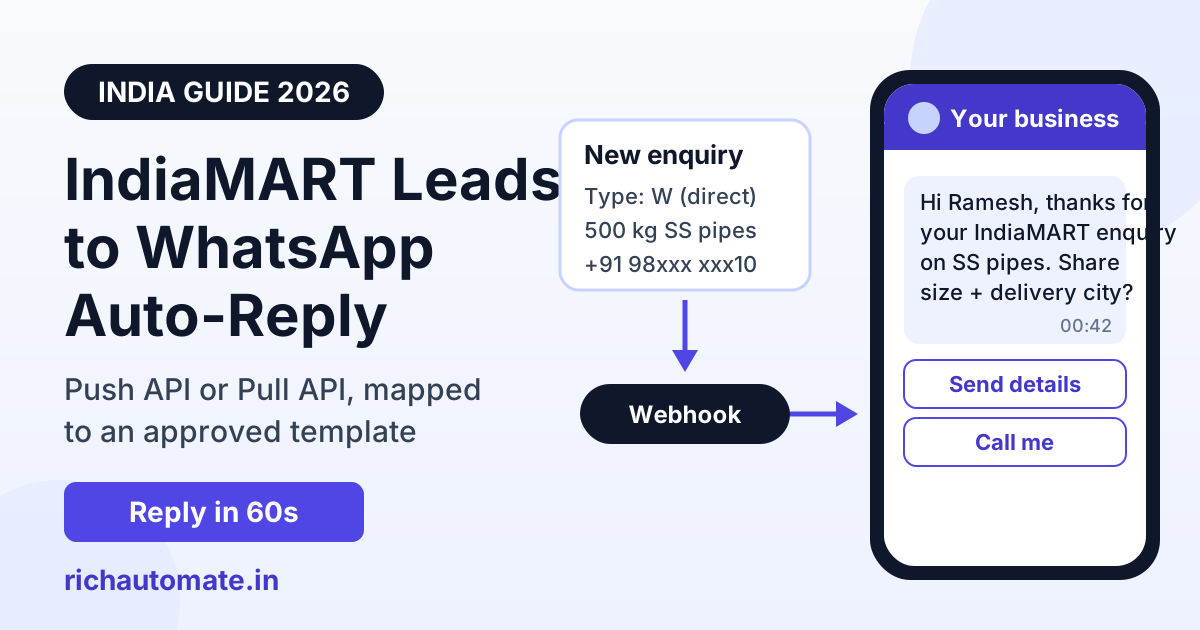
A paid IndiaMART seller can send every new buyer enquiry an automatic WhatsApp reply within about a minute. IndiaMART's Push API posts the lead to a webhook, a small mapping step converts it, and the WhatsApp Business API sends an approved template to the buyer's mobile. The setup below needs no developer if you use Pabbly Connect or Make. It also covers the Pull API fallback, the template rules that decide whether the reply gets delivered, and how to stop duplicate messages.
IndiaMART enquiries go stale fast. A buyer looking for 500 kg of stainless steel pipe usually contacts several suppliers at once, so the first credible reply often sets the terms of the conversation. Most sellers still see the enquiry in the Lead Manager app, call when they get a moment, and reach voicemail. A WhatsApp reply that arrives while the buyer still has the IndiaMART tab open gives them something to answer on their own schedule, and it puts your number in their chat list ahead of every supplier who has not replied yet.
How IndiaMART to WhatsApp auto-reply works
Every working setup has the same four parts:
- Lead source: IndiaMART's Lead Manager, which exposes each enquiry through the CRM APIs.
- Transport: either the Push API (IndiaMART calls your URL in real time) or the Pull API (your system asks IndiaMART for new leads every few minutes).
- Mapper: a step that reads IndiaMART's JSON (buyer name, mobile, product, message) and reshapes it into the request your WhatsApp platform expects.
- Sender: a WhatsApp Business API account that sends a Meta-approved template, because the buyer has never messaged your WhatsApp number.
RichAutomate is the sender in this chain. It does not have a native, one-click IndiaMART connector. The connection runs through RichAutomate's public developer API (POST /api/v1/send-template), or through an Incoming Webhook trigger on a chatbot flow, with Pabbly Connect, Make or a short script doing the mapping. The mapper is required: IndiaMART's payload shape is its own, and no WhatsApp platform reads it as-is.
Push API vs Pull API: which one to use
IndiaMART documents two CRM integration methods in its seller help centre. Both are for paid sellers only. IndiaMART describes the Leads API as an add-on to a paid package, not a standalone product, and says it does not provide hands-on setup support. Check your own seller panel, because package names and eligibility change.
| Point | Push API (real-time) | Pull API (polling) |
|---|---|---|
| How leads arrive | IndiaMART sends an HTTPS POST to your webhook URL as each lead comes in | Your system calls IndiaMART and fetches leads for a time window |
| Speed | Near-instant | As fast as your polling interval, in practice 5–10 minutes |
| Limits in IndiaMART's docs | No stated volume limit; the URL must be public HTTPS and return HTTP 200 | Max 7-day window per call, calls at least 5 minutes apart, more than 5 hits in a minute blocks the key for 15 minutes |
| Failure handling | Failed pushes are retried and shown in failure logs; the integration deactivates if leads are not accepted for more than 48 hours | You re-pull with an overlap window; 365 days of history are available |
| Older leads | Only leads after activation | Can backfill earlier leads |
| Best for | Instant WhatsApp replies | Backfill, or when you cannot host a webhook |
For an auto-reply, use Push. Keep Pull as a nightly catch-up so any lead the webhook missed still reaches your CRM. IndiaMART's docs also say a Pull API key expires after 7 days without use, and that generating a new key invalidates the old one. If you rotate keys, update every system that uses the key.
The first WhatsApp message must be an approved template
This rule causes most failed setups. The buyer enquired on IndiaMART. They have not messaged your WhatsApp number, so no 24-hour customer service window is open. Under Meta's rules the business-initiated message has to be a pre-approved message template. A plain free-form text sent through the API will be rejected.
Practical rules for the template:
- Write it as a direct response to the enquiry. Name the product they asked about, ask one question (quantity, size, delivery city), and add quick-reply buttons such as "Send details" and "Call me". It should read like a supplier answering a buyer, not a sales flyer.
- Expect Meta to choose the category. An acknowledgement that only confirms the enquiry and asks for specifics may be approved as Utility. One that mentions discounts or offers will usually be classified as Marketing. You submit a category, but Meta's review decides, and Utility and Marketing are charged at different rates.
- Treat opt-in carefully. The buyer gave their number to IndiaMART for this enquiry. That justifies one relevant reply about what they asked for. It is not consent to your weekly broadcast. Add them to marketing lists only after they reply or explicitly opt in, and give them an easy way to opt out.
- Keep a fallback. Some enquiries come from numbers that are not on WhatsApp, and those sends fail. Route failed sends to a call task instead of retrying the template.
Once the buyer replies, the 24-hour window opens and your team, or a chatbot flow, can continue in free-form messages.
What is in an IndiaMART lead (and how to use it)
IndiaMART's CRM API documentation lists the fields each lead carries. The ones that matter for a WhatsApp reply are UNIQUE_QUERY_ID, QUERY_TYPE, QUERY_TIME, SENDER_NAME, SENDER_MOBILE, SENDER_EMAIL, SENDER_COUNTRY_ISO, QUERY_PRODUCT_NAME and QUERY_MESSAGE. Times are in IST. QUERY_TYPE tells you how the lead reached you, and it is worth sending a different first message for each type:
| QUERY_TYPE | Meaning (per IndiaMART docs) | Suggested first WhatsApp template |
|---|---|---|
| W | Direct enquiry to you | Thank them for the enquiry on the named product, ask quantity and delivery city |
| B | Buy-lead you purchased or consumed | Introduce your firm briefly, reference their requirement, ask whether they still need it |
| P | Call through IndiaMART's PNS number | "Sorry we missed your call", offer a callback time, add a catalogue button |
| BIZ | Catalogue view | Usually skip, or send only if your template is clearly relevant. Viewing is weak intent. |
| WA | Enquiry via WhatsApp on IndiaMART | Same as W; check whether the buyer already messaged your number before sending a template |
Two data quirks need handling in the mapper. First, SENDER_NAME can come through as the default "IndiaMART Buyer", so use a neutral greeting ("Hi there") when the name is missing or generic. Second, normalise SENDER_MOBILE to digits with the country code (91 followed by the 10-digit number for India) whatever format arrives. Use SENDER_COUNTRY_ISO to skip or reroute overseas buyers if you only serve India.
Setup option 1: Pabbly Connect or Make (no code)
This is the quickest route. Pabbly publishes a ready recipe for sending IndiaMART lead details to WhatsApp, and Make supports the same pattern with a custom webhook module. The steps:
Get the India 2026 WhatsApp BSP price comparison
Wati vs AiSensy vs Interakt vs RichAutomate: Meta rates, platform fees and hidden costs, side by side. We send it to your WhatsApp in a minute.
- Create the trigger. In Pabbly, start a workflow with a Webhook trigger and copy its URL. In Make, add a Custom Webhook module.
- Register the URL with IndiaMART. In the seller panel, open Lead Manager, use the ⋮ menu, then Import/Export Leads, then Push API. Choose "Other" as the CRM, give it a name, paste the webhook URL and confirm with the OTP sent to your primary mobile. These menu names are from IndiaMART's help article and may move.
- Capture a sample. Send a test enquiry, or wait for a real one, so the workflow learns the payload fields inside
RESPONSE. - Add a filter. Continue only for the QUERY_TYPE values you want to answer, and only when
SENDER_MOBILEis present. - Add the WhatsApp action. Use an HTTP / API request step that POSTs to RichAutomate's
/api/v1/send-templateendpoint with your API key as a Bearer token. The body is shown below. - Log it. Append the lead and the send result to a Google Sheet or your CRM, so sales can see who was contacted.
The send request body looks like this:
POST https://richautomate.in/api/v1/send-template
Authorization: Bearer YOUR_API_KEY
Content-Type: application/json

{
  "phone": "919876543210",
  "template": "indiamart_enquiry_ack",
  "language": "en",
  "variables": ["Ramesh", "SS pipes"]
}
The variables array fills the template placeholders in order. If the template has an image or document header (a product sheet, for example), the same endpoint accepts header_media_type and header_media_url. The API checks your wallet balance before sending and returns an error if the balance is too low. Have your workflow alert someone when that happens. The full reference is in the RichAutomate API docs. If your other lead tools already run through Make, see the Make.com WhatsApp integration guide.
Setup option 2: start a chatbot flow instead of a single message
A single template only acknowledges the lead. To qualify the buyer automatically (quantity, budget band, delivery city, GST invoice needed?), trigger a chatbot flow. In RichAutomate's flow builder, set the flow's start node to the Incoming Webhook trigger. The flow then gets its own URL of the form /api/v1/public/flows/{token}/trigger, which accepts {"phone": "...", "name": "...", "data": {...}}.
The flow URL does not read IndiaMART's format directly, so keep the mapper in between. Have Pabbly or Make receive the IndiaMART push, then POST phone, name and a data object (product, quantity text, query ID, query type) to the flow URL. Values in data are saved as contact attributes, so later flow steps and your agents can see which IndiaMART product the lead asked about. The flow must be active. An inactive flow rejects the trigger, and the mapper should log that error rather than ignore it.
The flow's first message still has to be an approved template. After the buyer taps a button, the flow can ask the qualifying questions and score the lead. The WhatsApp lead qualification and scoring guide covers how to design those questions so the hot enquiries reach your sales team first.
Setup option 3: a small poller script (Pull API)
If you cannot register a webhook, or you want an independent backup, run a scheduled script. IndiaMART's own guidance is a 5-minute polling cycle with a 5-minute overlap:
- Every 5–10 minutes, request leads from the last 10–15 minutes (the overlap catches anything that arrived late).
- Store each
UNIQUE_QUERY_IDyou have processed. Skip any lead you have already seen. - Never call more often than every 5 minutes. IndiaMART's docs say more than 5 hits in a minute blocks the key for 15 minutes.
- For each new lead, normalise the mobile and call
send-templateexactly as in option 1.
A script like this is a few dozen lines in PHP, Node or Python and runs on any server that already has cron. The deduplication table is the part that matters most.
Stop duplicate WhatsApp replies
Duplicates make a seller look automated in the worst way. The common causes:
- Push retries. If your webhook times out or returns anything other than HTTP 200, IndiaMART's docs say it retries. If the WhatsApp send had already happened, the buyer gets it twice. Fix: check
UNIQUE_QUERY_IDagainst a store (a Google Sheet column, a Data Store in Pabbly or Make, or a database table) before sending, and return 200 quickly. - Push plus Pull running together. Share one dedupe store between both paths.
- Repeat enquiries from the same buyer. A buyer who enquires about three products in an hour should get one conversation, not three templates. Also dedupe on mobile number within a time window (for example 24 hours), and pass the extra products to your agent as notes.
Also make sure your webhook keeps accepting leads. IndiaMART says the Push integration deactivates after 48 hours of failed deliveries, so a broken workflow over a weekend can switch the integration off without any visible error. Check the failure log once a week.
What it costs on RichAutomate
| Item | Cost |
|---|---|
| RichAutomate setup | ₹0 |
| RichAutomate monthly fee | ₹0 |
| RichAutomate platform fee (Client Pay) | ₹0.10 per message |
| Meta template charges | Billed by Meta directly to your own payment method, at Meta's rate for the template category |
| Pabbly Connect / Make | Their own plan pricing; a low lead volume often fits a starter tier |
| IndiaMART Leads API | Part of IndiaMART's paid seller packages; check with IndiaMART |
For example, a seller with 20 IndiaMART enquiries a day who sends one template each and then two or three follow-up messages pays a RichAutomate platform fee of a few rupees a day. Meta's template charges are billed separately by Meta. Full numbers are on the pricing page.
Missed calls, TradeIndia and other B2B portals
PNS calls (QUERY_TYPE P) are worth a separate branch. When a buyer calls your IndiaMART number and nobody answers, a WhatsApp "sorry we missed you" template with a callback button recovers many of those leads. The same pattern for your own phone line is covered in the missed-call and IVR lead capture guide.
TradeIndia and other B2B portals offer their own lead export or CRM options to paid members. Their availability and format differ from IndiaMART's, so check the seller panel or ask your account manager. Wherever a portal can call a webhook, or you can poll it, the pattern is the same: mapper, dedupe, approved template, then the conversation. If you also run Meta lead-gen campaigns, the Facebook Lead Ads auto-reply setup uses the same architecture. Send both lead streams into one flow so your team works a single inbox.
Checklist before you switch it on
- Confirm your IndiaMART package includes the Leads API and that you can see the Push API option.
- Get one acknowledgement template approved (with buttons) and, optionally, a separate missed-call template.
- Build the mapper with a QUERY_TYPE filter, mobile normalisation and a dedupe check on
UNIQUE_QUERY_ID. - Test with your own mobile as the buyer before you register the production URL.
- Log every send to a sheet or CRM, and add an alert for failed sends and low wallet balance.
- Schedule a nightly Pull API catch-up, and check the IndiaMART failure log every week.
Ready to wire it up? Create a free RichAutomate account. It has no setup fee and no monthly fee. Generate an API key, get your first template approved, and point your IndiaMART leads at it. The integrations page lists the tools that connect natively (Zoho CRM, Razorpay, Google Sheets) and the ones that connect through the API.