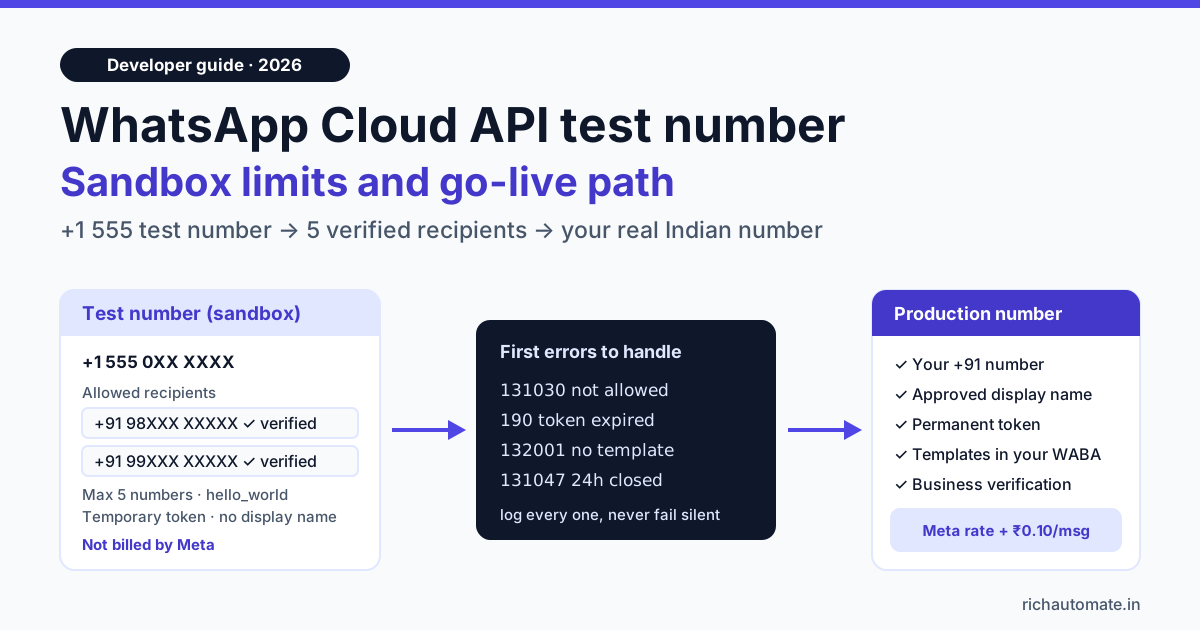
The WhatsApp Cloud API test number is a free US +1 555 sandbox number that Meta creates when you add WhatsApp to a developer app: it can message only up to 5 verified recipient numbers, sends the pre-approved hello_world template, and cannot carry your brand name or real customer traffic. Use it to prove your API calls and webhooks work, then add your own Indian business number to go live. This guide covers the exact sandbox limits, the errors Indian developers hit first (131030, 190, 132001), and a clean path from test number to production without losing your templates or your weekend.
We checked the details below against Meta's Cloud API "Get Started" guide and error-code reference on 27 October 2026. Meta changes its developer dashboard often, so treat menu names as a guide and confirm limits in your own App Dashboard before you plan a launch around them.
What the WhatsApp Cloud API test number actually is
When you create an app on developers.facebook.com and add the WhatsApp product, Meta sets up three things for you: a test WhatsApp Business Account (WABA), a test business phone number in US format (it starts with +1 555), and a temporary access token on the WhatsApp → API Setup page. Together they form the sandbox. You can send your first message within minutes, with no business verification, no display-name review and no payment method.
The catch is in the word "test". The number exists to let developers confirm that their code can authenticate, send a template, and receive webhooks. It is not a cheap or free way to message customers. Meta only lets it deliver to a short allow-list of recipient numbers that you verify one by one, and the recipient sees an unbranded number with no business profile.
For Indian teams this matters because the sandbox is often where projects stall. A developer builds the whole integration on the test number, the business owner wants to "just send it to our customer list", and the first real send fails with an allow-list error. Knowing the limits up front saves that argument.
Test number vs your real business number
The table below is the quickest way to explain the sandbox to a non-technical founder. Everything in the left column is fine for development; everything in the right column is what you need before a single customer sees a message.
| What you need | Meta test number (sandbox) | Your real business number |
|---|---|---|
| Number format | US number starting +1 555, assigned by Meta | Your own Indian number, for example +91 98XXX XXXXX |
| Who can receive messages | Only up to 5 recipient numbers you verify in API Setup | Any WhatsApp user who has opted in, within your messaging limit |
| Templates | Pre-approved hello_world to start; your own templates go through normal review | Your own approved utility, marketing and authentication templates |
| Display name and profile | No custom display name or profile picture | Your approved display name, logo and business profile |
| Meta charges | Not billed by Meta | Meta's per-message rates for templates |
| Access token | Temporary token that expires within about a day | Permanent System User token |
| Business verification | Not required | Needed to raise your messaging limit beyond the starting tier |
| Right use | Proving API calls, webhooks and payload formats | Real customer conversations, alerts and campaigns |
One practical point for India: the sandbox can deliver to Indian recipient numbers. You do not need a US phone to test. Add your own +91 number to the allow-list, verify it with the code WhatsApp sends, and messages arrive like any other chat, from the +1 555 sender.
How to set up the test number in about 10 minutes
The steps below follow Meta's current Get Started flow. If a label has moved, look for the same idea on the WhatsApp section of your App Dashboard.
- Create a Meta developer app. On developers.facebook.com, create an app of the Business type and attach it to your business portfolio (or create a test portfolio if you only want to experiment).
- Add the WhatsApp product. Meta creates the test WABA and the +1 555 test number automatically.
- Open WhatsApp → API Setup. Note the Phone number ID and WhatsApp Business Account ID. Your code uses the phone number ID, not the phone number itself.
- Add a recipient. In the "To" field, add your own WhatsApp number with country code. WhatsApp sends a verification code to that number; enter it to add the number to the allow-list. Repeat for up to 5 numbers, typically yourself, your developer, a tester and the business owner.
- Generate a temporary access token on the same page and send the sample
hello_worldtemplate. - Reply from your phone. Replying opens a 24-hour customer service window, so the test number can now send you free-form text, buttons and media to test your bot logic.
- Configure a webhook under WhatsApp → Configuration so you can see delivery statuses and inbound replies in your server logs.
The first API call from your terminal looks like this (replace the ID and token with your own):
curl -X POST "https://graph.facebook.com/v24.0/<PHONE_NUMBER_ID>/messages" \
  -H "Authorization: Bearer <ACCESS_TOKEN>" \
  -H "Content-Type: application/json" \
  -d '{
    "messaging_product": "whatsapp",
    "to": "919876543210",
    "type": "template",
    "template": { "name": "hello_world", "language": { "code": "en_US" } }
  }'
Note the recipient format: country code 91 plus the 10-digit mobile number, with no plus sign, spaces or leading zero. Most "it works in Postman but not in code" bugs in Indian projects come from a +91, a space or a leading 0 sneaking into the to field. If you are building in JavaScript, our Node.js WhatsApp API integration guide shows the same call with retries and webhook signature checks.
Sandbox limits that catch Indian developers out
These are the limits that turn up in real projects. None of them are bugs; they are how Meta designed the sandbox.
- The 5-recipient allow-list. You cannot message a sixth person, a customer, or a list uploaded from your CRM. Every recipient must be added and verified in API Setup first. If your QA team has eight testers, rotate numbers or move to a real number.
- The temporary token expires. Meta describes it as expiring quickly; in practice it lasts about a day. An integration that worked yesterday and fails with error 190 this morning almost always has an expired temporary token. Production needs a System User token that does not expire on a timer.
- No brand on the sender. Recipients see a +1 555 number, not your business name. That is fine for internal testing and confusing for anyone else, which is another reason not to demo to clients from it.
- Templates still need approval.
hello_worldis ready to use. Any template you create yourself, even under the test account, goes through Meta's normal review before you can send it. - The 24-hour window still applies. Free-form messages only work after the recipient has messaged the number in the last 24 hours. Outside that window, you must send a template, exactly as in production.
- Low daily volume. The test number is not meant for load tests. Meta does not publish a throughput figure for it that you should plan around, so test rate limiting and queue behaviour on your real number at small volume instead.
A useful rule: if a test needs more than 5 people, real customer data, your brand name or real volume, it does not belong on the test number.
Get the India 2026 WhatsApp BSP price comparison
Wati vs AiSensy vs Interakt vs RichAutomate: Meta rates, platform fees and hidden costs, side by side. We send it to your WhatsApp in a minute.
Common test-number errors and how to fix them
The error codes below are the ones that show up in the first week of almost every Cloud API project. Meta returns them in the API response or in the statuses webhook, so log both.
| Error code | What it means | Fix |
|---|---|---|
| 131030 | Recipient phone number not in the allowed list | Add and verify the number in API Setup, or switch to your real business number |
| 190 | Access token has expired | Generate a new temporary token for testing; use a permanent System User token in production |
| 132001 | Template does not exist in that language, or is not approved | Match the template name and language code exactly, for example hello_world with en_US |
| 131047 | More than 24 hours since the recipient last replied | Send an approved template instead of free-form text |
| 100 | Invalid or misspelled parameter | Check field names, the to format and the phone number ID in the URL |
| 133010 | Phone number not registered on the WhatsApp Business Platform | Finish registering your real number before sending from it |
Error 131030 deserves a special mention because it confuses non-developers the most. It never appears on a properly registered production number for this reason; it means you are still sending from the sandbox to someone outside the allow-list. For the full list of codes Indian businesses hit after go-live, and whose fault each one is, see our WhatsApp Business API error codes decoded guide.
Moving from the test number to production
Going live means swapping the sandbox pieces for real ones. The order matters, because some steps involve Meta review and take time.
- Pick the number. Use a number you control that can receive an SMS or voice call for verification. If it is currently on the WhatsApp or WhatsApp Business app, you must either delete that account first or use Meta's coexistence option where your provider supports it. Landlines and virtual numbers work if they can receive the verification call.
- Add it to your WABA from API Setup or WhatsApp Manager, verify it with the code, and set a display name that matches your business. Meta reviews the display name.
- Create a System User in Business Settings, give it access to the app and the WABA, and generate a permanent token with the
whatsapp_business_messagingandwhatsapp_business_managementpermissions. Store it as a secret, never in front-end code or a Git repository. - Recreate or confirm templates. Templates belong to a WhatsApp Business Account, not to a phone number. If your real number sits in the same WABA you tested with, your approved templates carry over. If it lands in a different WABA, which is common when the test account was a throwaway, submit the templates again there.
- Add a payment method in WhatsApp Manager so Meta can bill template messages.
- Complete business verification to raise your messaging limit. A new number starts at a low limit on business-initiated conversations with unique users in a rolling 24 hours, and grows in tiers as you verify and keep quality high. Our WhatsApp messaging limits and tiers guide explains how the tiers move.
- Swap the config. Update the phone number ID, WABA ID and token in your environment variables, point the webhook at production, and send one template to yourself before anything else.
Keep the test number around after go-live. It is a safe place to try new payloads and webhook changes without touching your real sender's quality rating. You can also remove it from WhatsApp Manager if it clutters your account.
What sending costs once you go live in India
The sandbox is free, so the first question after go-live is usually "what will this cost us?" On RichAutomate's Client Pay model you pay Meta directly at Meta's own rates and pay RichAutomate a flat ₹0.10 platform fee per message. There is no setup fee and the Pay-as-you-go plan has no monthly fee. Using Meta's India rates of about ₹0.115 for a utility template and about ₹0.86 for a marketing template:
| Monthly volume | Meta charge (billed by Meta) | RichAutomate fee at ₹0.10/msg | Total |
|---|---|---|---|
| 1,000 utility templates (order and booking alerts) | about ₹115 | ₹100 | about ₹215 |
| 5,000 utility templates | about ₹575 | ₹500 | about ₹1,075 |
| 1,000 marketing templates (offers) | about ₹863 | ₹100 | about ₹963 |
| 2,000 replies inside the 24-hour service window | ₹0 (Meta does not charge service replies) | ₹200 | ₹200 |
If you want a fixed plan instead of pure pay-as-you-go, Starter is ₹499 a month, Pro ₹899 and White-label ₹1,199, and the plan fee is credited to your wallet for sending rather than charged on top. Developer API access is a ₹199 a month add-on on Pay-as-you-go and is included in Pro. Full details are on the pricing page. Meta's rates change from time to time, so check the current rate card before you budget a large campaign.
Skipping the sandbox: testing on your real number
The test number is the right tool if you are building directly on the Cloud API with your own code. If you are not, you may not need it at all. A Business Solution Provider connects your real number through Meta's Embedded Signup flow, so you test on the number your customers will actually see, with your display name, from day one. The trade-offs are covered in our Embedded Signup vs BSP comparison.
With RichAutomate, for example, you connect your number in the dashboard, get templates approved in the same place, and can still call the public developer API (POST /api/v1/send-template with a Bearer key) or trigger a flow from any system through an incoming webhook. Testing then means sending to your own number and your team's numbers on the live sender, at Client Pay rates, rather than juggling a 5-number allow-list and a token that expires every day.
Whichever route you take, keep a written test plan. Our WhatsApp chatbot test cases template has 59 ready-made cases for templates, flows and edge cases that you can run on either the sandbox or your live number.
Test-number checklist before you call it done
- Your own number and at least one teammate's number are on the allow-list and verified.
hello_worldsends successfully and you seesent,deliveredandreadstatuses arrive on your webhook.- An inbound reply reaches your server and your bot answers inside the 24-hour window.
- Your code handles 131030, 190, 132001 and 131047 with a clear log line, not a silent failure.
- Phone numbers are normalised to
91XXXXXXXXXXbefore every send. - The temporary token lives in an environment variable, so swapping in the permanent token is a one-line change.
- Your production number, display name, templates and payment method are lined up before launch day, not on it.
Ready to move past the sandbox? Create your free RichAutomate account, connect your real business number, get your first utility template approved, and send to your own phone on Client Pay with no setup fee.