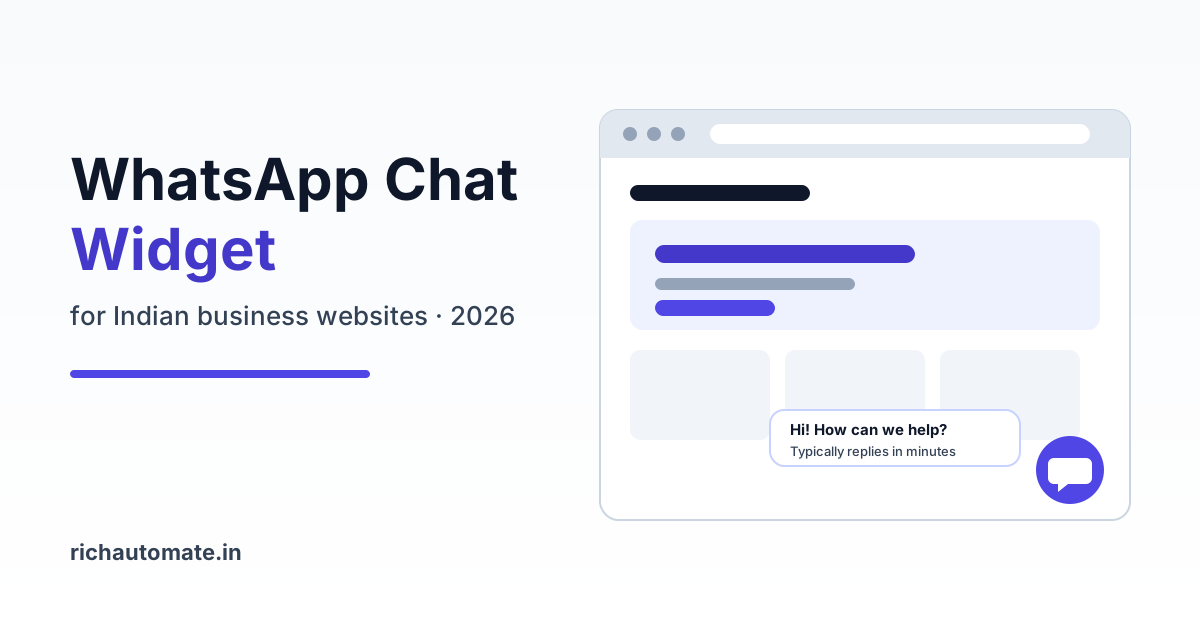
To add a WhatsApp chat widget to your website in India, place a floating button that opens a chat with your business number and a prefilled message, then connect it to the WhatsApp Business API so chats land in a shared team inbox with tracking and auto-replies. A plain wa.me button works for tiny sites, but an API-powered widget is what turns website visitors into trackable, followed-up leads.
Indian buyers already prefer WhatsApp over forms and phone calls. A D2C skincare shopper wants to ask about shades, a parent wants coaching batch timings, a patient wants to know if the clinic is open on Sunday. A well-built chat widget meets them there. This guide covers the three widget options, where to place the button, how to capture and track leads, what to do after hours, and the mistakes we see most often on WordPress, Shopify and Wix sites.
What a WhatsApp chat widget actually is
A WhatsApp chat widget is a small floating button, usually in the bottom-right corner of a page, that opens WhatsApp with your business number already filled in. On mobile it opens the WhatsApp app directly. On desktop it opens WhatsApp Web or the desktop app, or shows a QR code the visitor can scan with their phone.
Some widgets are just a styled link. Others show a small chat card first, with your logo, a greeting, "typically replies in a few minutes", and a button to start the conversation.
If you only need a link for print, packaging or Instagram bio, our guide to the WhatsApp click-to-chat link and QR code covers that. This article is about the on-site widget.
Widget vs wa.me link vs API-powered widget
There are three common ways to put WhatsApp on a website. They look similar to the visitor, but behave very differently for your team.
| Option | How it works | Best for | Limitations |
|---|---|---|---|
| Plain wa.me link or button | A link like wa.me/91XXXXXXXXXX with a prefilled text | Very small sites, one-person businesses | Opens on one phone, no routing, no auto-reply, no reporting beyond clicks |
| Plugin widget on WhatsApp Business app | A styled floating button (WordPress, Shopify, Wix plugin) pointing to the Business app number | Small shops with one or two people replying | Limited multi-agent use, basic away message only, chat history tied to devices |
| API-powered widget | Button opens chat with a number on the WhatsApp Business API, connected to a platform | D2C brands, clinics, coaching institutes, real estate, any team with more than one responder | Needs a provider and Meta business setup; template messages are paid |
The button itself can be identical in all three cases. The difference is what happens after the visitor taps send. With the API, you get shared inbox routing, chatbot flows, lead fields, tags and analytics. With a plain link, you get a message on someone's phone and hope they see it.
A plain link is fine for a solo consultant with a few chats a week. Move to an API-powered widget when more than one person answers chats, when you spend money on ads driving traffic to the site, when you want to know which pages generate leads, or when chats arrive outside office hours. In our experience that threshold arrives sooner than most SMBs expect, often at a few dozen chats a week.
How to add a WhatsApp widget to WordPress, Shopify and Wix
- Pick the number. Use a dedicated business number, ideally connected to the WhatsApp Business API. Never a personal number.
- Write the prefilled message. Something like "Hi, I am interested in the 2BHK in Whitefield" on a property page, or "Hi, I want to know batch timings for JEE 2027" on a coaching page.
- Install the button. On WordPress, use a lightweight plugin or paste the widget script in the footer. On Shopify, add it through the theme's app embed or a theme.liquid snippet. On Wix, use the Embed Code option in site settings.
- Set page rules. Decide where the button shows, what text it prefills per page, and whether it hides on checkout.
- Add tracking. Fire a GA4 event on click and add a page code to the message.
- Test on a real phone and on desktop. Confirm the chat opens, the prefilled text is correct, and the message arrives in your inbox.
If your site also has an enquiry form, you can push those submissions to WhatsApp too. Our walkthrough on WordPress contact form leads on WhatsApp shows how to send an instant WhatsApp confirmation to every form lead, so form and widget leads end up in the same place.
Placement and behaviour that converts
Most widget problems are placement problems. A button that hides the Add to Cart bar or the cookie banner loses more than it gains. Use this checklist before going live.
| Area | Recommended | Avoid |
|---|---|---|
| Position | Bottom-right, with enough margin above sticky bars | Overlapping cookie consent, sticky Add to Cart or Book Now buttons |
| Mobile size | Around 52 to 60 px, easy to tap with a thumb | Tiny icons or large banners that cover content |
| Timing | Visible on load, optional greeting card after a few seconds | Auto-opening chat windows or repeated pop-ups |
| Prefilled text | Page-specific, mentions product or service | Blank chats or a generic "Hi" |
| Checkout pages | Hide or make smaller to avoid distraction | Covering payment buttons |
| Label | "Chat on WhatsApp" or "Ask a question", with expected reply time | Promises like "instant reply 24x7" you cannot keep |
| Page speed | Lightweight script loaded after main content | Heavy widgets that slow down mobile loading |
Mobile vs desktop behaviour
On mobile, most Indian visitors have WhatsApp installed, so a tap opens the app instantly. This is where the widget does most of its work. On desktop, behaviour varies. A good widget detects desktop and shows a small card with a QR code plus a "Continue on WhatsApp Web" option, so the visitor can choose. Typically, mobile drives the large majority of widget chats for consumer businesses, while B2B sites see a bigger desktop share.
Page-specific prefilled messages
A prefilled message does two jobs. It lowers the effort for the visitor, and it tells your team what the person was looking at. A clinic site might use "Hi, I want to book a dermatology consultation" on the dermatology page and "Hi, I want to know about the full body check-up package" on the packages page. A Shopify store can pass the product name.
Get a 1-minute BSP audit on WhatsApp
Drop your WhatsApp number — we line-item your current invoice against Meta India rates in under 60 seconds. India-hosted, DPDP-compliant.
Capturing leads from widget chats
A chat is not a lead until you know who it is and what they need. With an API-powered widget, the first message can trigger a short flow that asks two or three questions: name, requirement, and city or budget. Keep it short.
Save the answers as contact fields and tags so they are searchable later. Then apply simple rules to rank who needs a call first. Our guide on WhatsApp lead qualification and scoring explains how to score leads on intent signals like budget, timeline and product interest, so your sales team starts the day with the hottest chats.
Two practical tips from what we see working:
- Always give the visitor a way to skip the bot and talk to a person. Forced bot flows frustrate people.
- Send a useful asset early, such as a price list, brochure or menu, so the visitor gets value before being asked for details.
Tracking widget performance with UTM and GA4
WhatsApp conversations leave the website, so standard analytics lose the trail once the app opens. You need to track two points: the click on your site, and the first message in WhatsApp.
Track the click in GA4
Fire a custom event such as whatsapp_click when the button is tapped. Add parameters like page_path, placement (floating, header, product page) and device category. Mark it as a key event in GA4 so you can compare it with form submissions and see which traffic sources drive WhatsApp intent.
Track the source inside the chat
Add a short source code to the prefilled message, for example "Hi, I want details about this product (ref: pdp-serum)". Pass the UTM campaign into the widget script so paid traffic carries a different code from organic. When the message arrives, your platform can read the code and tag the contact with the campaign. This lets you connect ad spend to actual conversations, not just clicks.
What to expect: as an illustrative range, many SMB sites see a small percentage of visitors click the widget, and a good share of those send the first message. Treat any benchmark as a starting point and measure your own numbers for a month before changing things.
After-hours handling and team routing
After-hours auto-replies
Website traffic in India peaks in the evening and late at night, when most teams are offline. A widget that leads to silence at 10 pm wastes the best-intent visitors.
Set an after-hours auto-reply that does three things: acknowledges the message, tells the visitor when the team will respond, and collects the key details so the morning reply can be specific. For clinics, share the emergency number. For D2C stores, answer common questions like delivery time, returns and COD availability right in the auto-reply.
For detailed setup, including Diwali and public holiday messages, see our guide on WhatsApp after-hours and holiday auto-replies.
Routing chats to a shared team inbox
The biggest upgrade over a phone-based widget is the shared team inbox. Every widget chat lands in one place where several agents can see, claim and reply to conversations from the same business number. You can route by page (sales enquiries from pricing pages, support from order-tracking pages), by language, or by round-robin across agents.
This matters for businesses like a multi-branch clinic, where the Pune and Nashik front desks each need their own chats, or a real estate firm where each project has a dedicated sales person. Our guide to the WhatsApp shared team inbox goes through setup and routing rules in detail.
DPDP consent and privacy
Under India's Digital Personal Data Protection Act, you should be clear about why you collect personal data and get consent where it is needed. When a visitor starts a chat from your widget, they have initiated contact, which lets you reply to their query. That is not the same as permission to send ongoing marketing messages.
Practical steps: link your privacy policy on the widget card, ask for explicit opt-in before adding someone to promotional broadcasts ("Would you like offers on WhatsApp? Reply YES"), record that opt-in against the contact, and honour opt-outs quickly. This is general guidance, not legal advice, so check with your advisor for your specific use case. Clean consent also protects your number's quality rating with Meta, though no provider can promise your number will never be restricted.
Common mistakes to avoid
- Widget covering the cookie bar or main CTA. Test on small phones. If the button sits on top of Buy Now or the consent banner, you lose sales and may create compliance issues.
- Personal number on the widget. Leads get stuck on one phone, disappear when staff leave, and cannot be reported on.
- No prefilled message. Visitors stare at an empty chat and many leave. A page-specific line fixes this.
- Promising 24x7 instant replies. Only promise what your team or automation can deliver.
- No tracking. Without a GA4 event and a source code, you cannot tell whether the widget earns its place.
- Adding everyone to broadcasts. A chat is not marketing consent. Ask first.
What an API-powered widget costs in India
The widget button itself is usually free. The cost is in the messaging platform and in any business-initiated messages you send. Here is how pricing works on RichAutomate.
| Item | RichAutomate pricing |
|---|---|
| Setup fee | ₹0 |
| Monthly fee on pay-as-you-go | ₹0 |
| Client Pay platform fee | ₹0.10 per message, with Meta charges billed directly to your own card |
| SaaS Pay marketing message (prepaid wallet, all-inclusive) | ₹1.50 per message |
| SaaS Pay utility message (prepaid wallet, all-inclusive) | ₹0.50 per message |
| Starter plan | ₹499 per month |
| Replying to widget chats within the customer service window | User-initiated service replies are free from Meta within the window |
Because widget chats are started by the visitor, most of your replies fall inside the customer service window. Costs mainly come in when you send follow-up templates later, such as appointment reminders or offers to opted-in contacts. See the full breakdown on our pricing page.
Ready to turn your website visitors into WhatsApp conversations your whole team can handle? Create your free RichAutomate account with ₹0 setup and ₹0 monthly on pay-as-you-go, connect your business number, and put an API-powered WhatsApp chat widget on your site today.