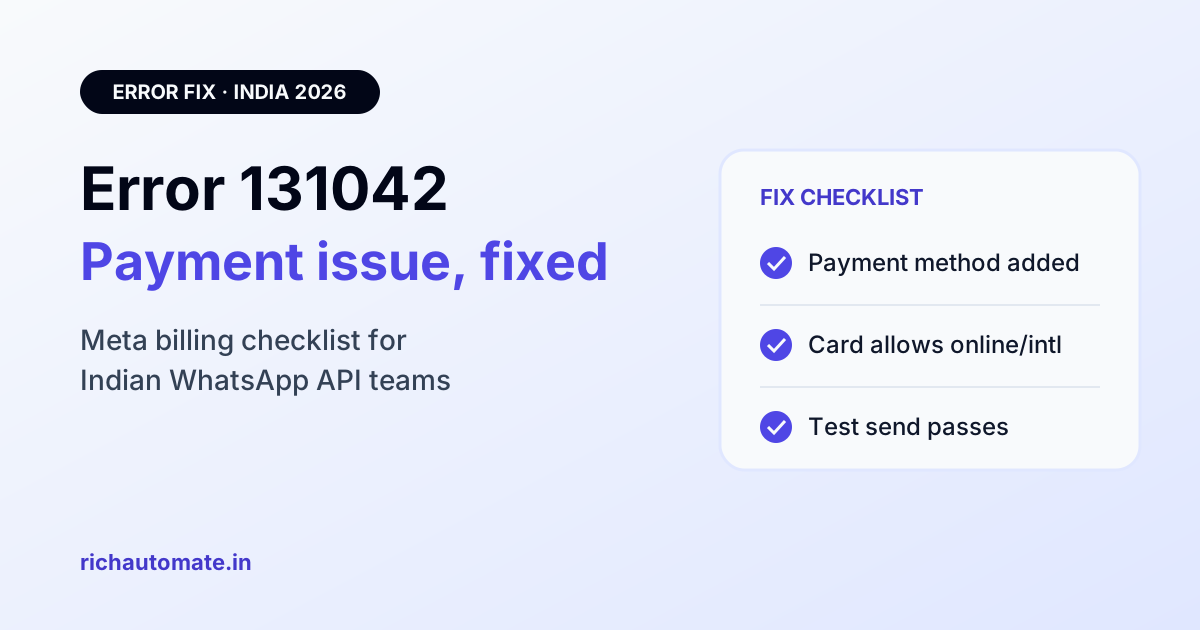
WhatsApp error 131042 means Meta refused to send your message because of a problem with the payment setup behind your WhatsApp Business Account, not because of your template or your customer. The fix is on the Meta billing side: attach a working payment method (or top up your prepaid balance) to the right messaging account, clear any failed charges, then prove it with a real test send.
If you run WhatsApp campaigns, OTPs or lead alerts from India, 131042 is one of the most confusing errors you can see. Your number looks connected, your templates are approved, and yet every template fails with the same short line: "Business eligibility payment issue". This guide explains what Meta actually documents about the error, why Indian businesses run into it, and the exact checklist we use to clear it.
What error 131042 actually means
Meta's Cloud API error reference describes 131042 in one sentence: "There was an error related to your payment method." The suggested solution is just as short: check the billing article for your WhatsApp Business Account and verify that billing is set up correctly. In webhooks and dashboards the same failure usually shows up with the title "Business eligibility payment issue".
In plain terms, before Meta delivers a paid message it checks whether your account is eligible to be charged. If that check fails, the message is not delivered. Three things are worth knowing straight away:
- It is an account-level error. Changing the template, the recipient or the message text will not fix it. Every chargeable message from that account fails until billing is sorted.
- Failed messages are not charged. Meta's prepaid billing documentation says messages already delivered are charged and failed messages are not, so 131042 does not quietly drain money.
- The API can still say "accepted". Meta notes that a payment rejection can arrive as an error on the send call or as a failed status webhook with code 131042, even when the send call itself returned accepted. If you only watch the API response, you will miss it.
For the wider family of Cloud API failures and what each code group means, see our guide to WhatsApp Business API error codes decoded for India.
Why the number looks healthy while every send fails
This is the part that wastes the most time. On our platform we saw a lead-welcome template fail with 131042 "Business eligibility payment issue" on a live Indian number in November 2026, while the number's health status looked fine. The phone number was connected, the quality rating was normal, and nothing in the number settings hinted at a problem.
The reason is simple: health status and quality rating describe the number and its messaging behaviour. They do not confirm that Meta can charge your account right now. Billing eligibility is checked separately, at send time. So a green status page is not proof that 131042 is gone. The only reliable proof is a real test send that reaches a real handset and comes back as delivered.
We have also seen the error flap: it clears for a while, sends go through, and then 131042 returns. That pattern usually points to a payment method that keeps failing on renewal or on each billing attempt, for example a card the bank keeps declining. Fixing it once is not enough if the underlying card or balance problem is still there.
The causes Meta documents, and where to check each one
Many blog posts list a long set of reasons for 131042. We have kept only the ones that Meta's own developer documentation supports, plus the checks that follow directly from them.
| Cause | Where to check | Fix |
|---|---|---|
| No valid payment method on the messaging account | Billing & payments (business.facebook.com/billing_hub), Accounts, Messaging accounts | Add a card or, on prepaid, add funds to that exact WhatsApp Business Account |
| Prepaid balance too low to cover the message, tax and unsettled charges | Billing Hub, the account's Balance card ("Available funds") | Add funds by UPI, wait until they show as available, then resend |
| Card on file is declining charges | Billing & payments, Payment activity | Pay the failed amount, fix the card with your bank or replace it |
| Account still sharing a previous partner's credit line after switching providers | Billing & payments, Messaging accounts, payment method listed on the account | Remove the old arrangement and attach your own payment method, or ask the old partner to detach their line |
| Card already shared across too many accounts | Error shown when saving the payment method | Use a different card; Meta says this limit cannot be increased |
Two causes that often get mixed up with 131042 are not billing errors. A restricted or disabled WhatsApp Business Account returns 131031, which is a policy and integrity error. And a template that is paused or rejected has its own template error codes. If you see one of those, a new card will not help.
Why Indian businesses hit 131042 more often
India has its own billing setup on the WhatsApp Business Platform, and that brings its own failure points. Meta's prepaid billing documentation says prepaid billing is available in India, funds are held in INR, money is added by UPI in the Billing Hub, and charges are inclusive of applicable Indian GST.
The most important detail is how the billing type is chosen. Per Meta, adding funds by UPI puts the account on prepaid billing, while saving a card puts it on invoiced billing. That first choice cannot be changed later; using a different method means creating a new messaging account. Each route has its own way to trigger 131042.
| India payment situation | Why it triggers 131042 | What to do |
|---|---|---|
| Prepaid (UPI) balance ran out | Meta reserves the message cost, GST and charges not yet settled, so you can be blocked before the balance shows zero | Top up early and keep a buffer above your daily spend |
| Card has online or international usage switched off | Meta's charge is declined at the bank, so the account is no longer eligible | Enable online and international card usage in your bank app; check with your bank which settings apply to Meta charges |
| Bank blocks repeat charges without a registered mandate | Under RBI rules for recurring card payments, the bank may decline charges that are not backed by an e-mandate | Check with your bank how recurring or saved-card charges from Meta are handled, then retry the failed payment |
| Card limit too low for campaign days | A large broadcast creates a bigger charge that the card cannot cover | Raise the card limit or use a card reserved for WhatsApp spend |
| Wrong account funded | Funds or card sit on a different messaging account from the one your number uses | Match the WhatsApp Business Account ID in your platform with the one in the Billing Hub |
We are careful here: RBI rules on card mandates and international card usage are applied by each bank in its own way, and Meta does not publish a list of which Indian cards work. If your card keeps failing, your bank is the only party who can tell you exactly why. Ask them for the decline reason on the Meta transaction.
Note too that Meta's own prepaid page says low-balance and zero-balance alerts go to admins by email, in the Meta Business Suite notifications and as a WhatsApp Manager banner. They are not sent to your webhook. If no admin watches that inbox, the first sign of trouble is a wave of 131042 failures.
Get the India 2026 WhatsApp BSP price comparison
Wati vs AiSensy vs Interakt vs RichAutomate: Meta rates, platform fees and hidden costs, side by side. We send it to your WhatsApp in a minute.
The 131042 fix checklist, step by step
Work through this list in order. Most accounts are fixed by step 4. Menu labels in Meta Business Suite change from time to time, so look for the closest match if a name differs slightly.
- Confirm the error really is 131042. Check the failed status webhook or the message log, not just the send response. Note the WhatsApp Business Account ID the number belongs to.
- Make sure you have the right access. You need admin or finance access on the Meta Business portfolio that owns the account. Billing pages are easiest to use in a desktop browser.
- Open Billing & payments. Go to business.facebook.com/billing_hub, then Accounts, then the Messaging accounts tab. Find the account that matches your WhatsApp Business Account ID.
- Check the payment method or balance. On invoiced billing, confirm a valid card is attached to that exact account, not just saved to the portfolio. On prepaid billing, open the Balance card and check "Available funds". Add funds by UPI if needed.
- Clear any failed or outstanding charge. Open Payment activity. If a charge failed, pay it, or replace the card and retry. An unpaid charge can keep the account ineligible even after a new card is added.
- Fix the card at the bank side. For Indian cards, turn on online and international usage, check the daily limit, and ask the bank about any declined Meta transaction.
- Check for an old partner credit line. If you moved from another provider, make sure the account is not still tied to their credit line. Meta notes that sharing a previous line can cause errors after a switch.
- Check business details. Make sure your portfolio details are complete and accurate. If you have not done it yet, our guide on Meta business verification for WhatsApp API in India walks through the documents Indian businesses need.
- Run a real test send. Send one approved template to a number you control and wait for the delivered status. Do not trust the dashboard alone.
- Escalate if it still fails. If billing looks correct and the test still fails with 131042, raise a Meta Direct Support ticket under billing, and include the failed transaction ID from Payment activity.
Want WhatsApp failures in plain sight instead of buried in webhooks? RichAutomate shows the Meta error code on failed messages in chats and in campaign failure reports, so you know when to look at billing. Start a 14-day free trial with ₹0 setup at RichAutomate.
How to confirm 131042 is really cleared
A fixed card and a green banner are encouraging, but they are not the finish line. Use this short proof routine before you restart campaigns:
- One template, one handset. Send a utility or marketing template to a phone you own. Watch for sent, then delivered.
- Check the status webhook, not the API reply. Remember that the send call can say accepted while the status still fails with 131042.
- Repeat after 24 hours. Because the error can flap when a card keeps failing, send a second test the next day. If it fails again, the payment method is still the problem.
- Restart slowly. Resume your queue in small batches first. If 131042 returns, you lose a few messages, not a full campaign.
Failed messages are not resent automatically. Once the account is eligible again, you need to resend the messages that failed while billing was broken.
131042 vs 131049 vs 131047 vs 131026
These four codes look similar in a failed-message log, but they have very different causes. Fixing the wrong one wastes days.
| Code | What Meta says | Real cause | Fix |
|---|---|---|---|
| 131042 | Error related to your payment method | Billing eligibility on the WhatsApp Business Account | Fix payment method, balance or failed charge, then test send |
| 131049 | Not delivered to maintain healthy ecosystem engagement | Meta limits marketing messages to a user | Wait at least 24 hours before resending; improve targeting |
| 131047 | More than 24 hours since the recipient last replied | Free-form message sent outside the customer service window | Send an approved template instead |
| 131026 | Message undeliverable | Recipient side, for example the number is not on WhatsApp or uses an old app version | Confirm the number and ask the user to update WhatsApp |
The quickest tell: 131042 hits every chargeable message from the account at once, while 131049 and 131026 hit some recipients and not others. If only part of a campaign fails, 131042 is unlikely to be the reason. For the marketing-limit case, read our WhatsApp error 131049 fix for India, and keep the full WhatsApp error code reference bookmarked for the rest.
Preventing 131042 from coming back
Once the account is working, a few habits keep it that way:
- Give billing alerts a real owner. Make sure at least one admin who reads email daily gets Meta's low-balance and payment notices.
- Use a dedicated card or a funded prepaid balance. Do not share the WhatsApp card with ads spend that can hit the limit first.
- Top up before big sends. On prepaid, add funds the day before a broadcast, not after it fails. Remember Meta reserves money for GST and unsettled charges.
- Budget your spend. Estimate monthly Meta charges with our WABA cost calculator and keep a buffer above that figure.
- Watch status webhooks. Alert your team when more than a few messages fail with 131042 in a row, so you catch the problem in minutes.
- Re-check after renewals. A replaced or renewed card needs to be updated on the messaging account, not just in your bank.
How billing works on RichAutomate, and why it matters for 131042
RichAutomate uses Client Pay. Meta bills its message charges directly to your own payment method in Meta Business Manager, at Meta's rate with no markup. RichAutomate adds a platform fee of ₹0.10 per message. Service replies sent inside the 24-hour customer service window are free per Meta.
This is exactly why the Meta payment method matters. Because Meta charges you directly, your card or prepaid balance in the Billing Hub is what decides whether messages go out. If it fails, Meta returns 131042 regardless of which platform you use, and only an admin on your Meta Business portfolio can fix it. The upside is that you see every Meta charge on your own invoice and keep full control of the account.
Platform plans in India start at ₹499 per month for Starter, ₹899 for Pro and ₹1,199 for White-label, with ₹0 setup and a 14-day free trial. Full details are on our WhatsApp API pricing page.
Quick summary
Error 131042 is a billing eligibility error. Your templates and number are usually fine; Meta simply cannot charge the account. Check the messaging account in the Billing Hub, fix the card or top up the prepaid balance, clear failed charges, sort out bank-side blocks on Indian cards, and then prove the fix with a real test send that reaches delivered. If it comes back, the payment method is still failing somewhere.
Ready to run WhatsApp with clear failure reporting and Meta charges billed straight to you? Create your RichAutomate account and start the 14-day free trial today.