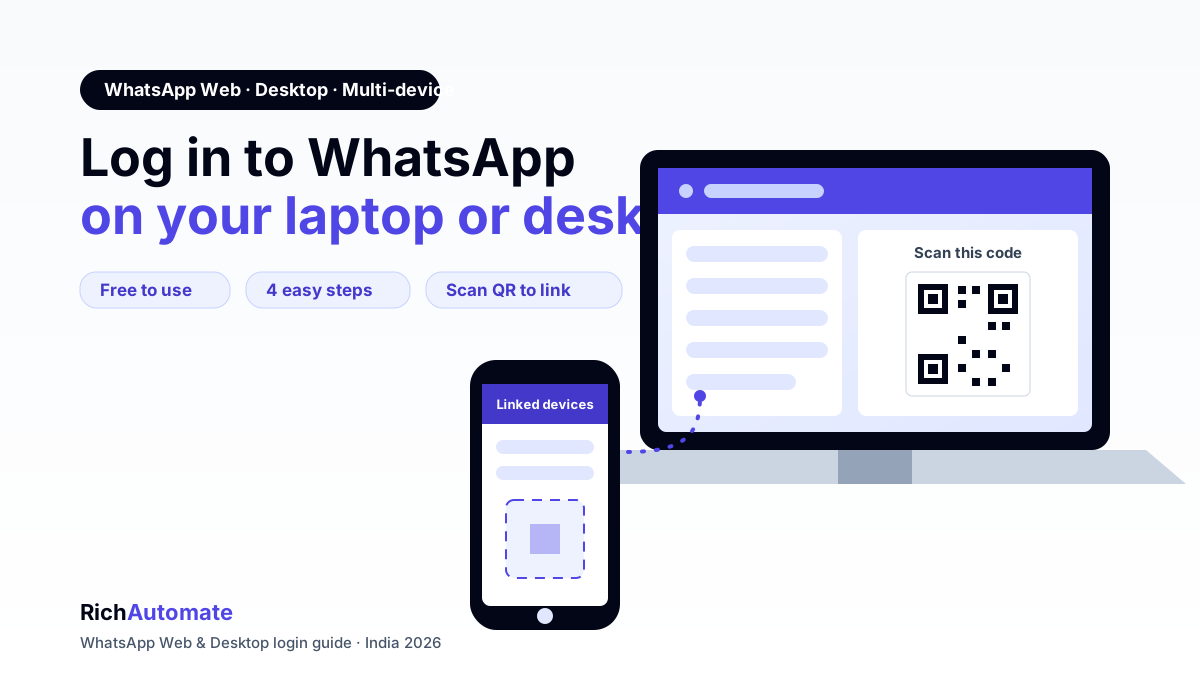
To log in to WhatsApp on a laptop or desktop, open web.whatsapp.com in your browser (or install the WhatsApp Desktop app), then scan the on-screen QR code using your phone. On your phone, go to Settings → Linked Devices → Link a device, point the camera at the code, and your chats appear on the bigger screen within seconds.
WhatsApp is India's most-used messenger, and typing on a full keyboard is far faster than a phone for work chats, sharing files, and copy-pasting. This guide covers browser login, the desktop app, multi-device mode, the usual login problems, and where personal WhatsApp Web stops being enough for a business.
WhatsApp Web login (browser)
WhatsApp Web runs inside any modern browser — Chrome, Edge, Firefox, or Safari — with no download needed. Here is the exact sequence:
- On your laptop, open web.whatsapp.com.
- Open WhatsApp on your phone.
- On Android, tap the three-dot menu (top right) and choose Linked devices. On iPhone, tap Settings (bottom right), then Linked Devices.
- Tap Link a device. Your phone may ask you to unlock with your fingerprint, face, or PIN.
- Hold your phone up to the laptop screen so the camera captures the QR code.
- Once it reads, your chats load on the browser. Tick Keep me signed in so you do not have to scan again on that device.
Always log out when you use a shared or public computer — from the browser, open the three-dot menu inside WhatsApp Web and choose Log out, or remove the device from Linked Devices on your phone.
WhatsApp Desktop app login
The desktop app is a better fit if you chat on your computer all day — it is faster than the browser, supports desktop notifications, and handles calls. The login flow mirrors the web version.
Windows
- Download WhatsApp from the Microsoft Store or from whatsapp.com, then install and open it.
- Open Linked Devices → Link a device on your phone.
- Scan the QR code shown in the desktop app.
Mac
- Download WhatsApp from the Mac App Store or whatsapp.com and open it.
- On your phone, go to Linked Devices → Link a device.
- Scan the QR code to link.
The desktop app keeps you signed in between sessions, so you usually scan only once per machine.
Get the India 2026 WhatsApp BSP price comparison
Wati vs AiSensy vs Interakt vs RichAutomate: Meta rates, platform fees and hidden costs, side by side. We send it to your WhatsApp in a minute.
Web vs Desktop app: which should you pick?
Use WhatsApp Web when you are on a borrowed or office computer where you cannot install software, or when you only need it occasionally — nothing to download, just scan and go. Use the Desktop app if it is your own machine and you chat all day: it launches with your computer, shows proper desktop notifications, handles voice and video calls more reliably, and feels quicker with large chats. Both use the same account and the same QR-scan login, so there is no wrong choice — only what suits how often you sign in.
Multi-device: use WhatsApp without your phone online
WhatsApp's multi-device mode lets a linked laptop or desktop keep working even when your phone is switched off or has no internet. When you scan the QR code, that device gets its own secure, end-to-end encrypted connection to WhatsApp rather than mirroring your phone in real time.
- You can link up to four devices plus your primary phone.
- Each linked device syncs your chats independently, so a dead phone battery no longer freezes WhatsApp Web.
- If a linked device stays inactive for around 14 days, WhatsApp automatically logs it out for security — just scan again to reconnect.
Common login problems + fixes
- QR code will not scan: clean your camera lens, increase your laptop screen brightness, and hold the phone steady about 20–30 cm away. If the code has greyed out, click it to refresh a new one.
- Keeps logging you out: a weak or dropping internet connection on the phone is the usual cause. Also confirm you are not over the four-device limit — remove an old device under Linked Devices.
- Camera not opening on the phone: grant WhatsApp camera permission in your phone's app settings, then reopen Link a device.
- Chats not syncing: make sure both the phone and the computer are on a stable network; very old chats can take a minute to download on a freshly linked device.
- Old device still listed: open Linked Devices, tap the device, and choose Log out to revoke access instantly.
WhatsApp Web for business: where personal login stops being enough
Personal WhatsApp Web is brilliant for one person at one keyboard. But the moment a business wants a team answering the same number, it hits a wall — WhatsApp Web signs in one person at a time, has no way to assign chats, cannot send approved broadcasts to thousands of customers, and has no automation or reporting. That is a different product: the WhatsApp Business API.
The API is built for exactly what personal login cannot do — a shared team inbox where several agents handle one number, auto-replies and chatbot flows that answer instantly at 2 a.m., bulk template campaigns, and clean delivery reporting. RichAutomate connects your number to the official Meta Cloud API and layers this on top. If you are weighing it up, our guides on WhatsApp Business API cost in India and the best WhatsApp Business API providers break down pricing and choices, while our use-case library and transparent pricing page show what a business setup actually looks like. If you are one person managing your own chats, plain WhatsApp Web is all you need — the API only earns its place once a team and volume are involved.
Before you submit, run the copy through the WhatsApp template approval checker to catch the rejection triggers Meta flags most often.
FAQ
Is WhatsApp Web free to use?
Yes. WhatsApp Web and the WhatsApp Desktop app are completely free. You only need the WhatsApp app already installed on your phone and an internet connection on both devices.
Do I need my phone online to use WhatsApp Web?
Not for the newer multi-device mode. Once a device is linked, it works even if your phone is offline. Your phone only needs to be online for the initial QR scan and, occasionally, to keep everything in sync.
Can I use WhatsApp Web on two laptops at once?
Yes. You can link up to four devices to one WhatsApp account at the same time, so multiple laptops, desktops, or tablets can stay signed in together alongside your primary phone.
Is WhatsApp Web safe?
Yes, messages stay end-to-end encrypted on linked devices. To stay safe, always log out on shared or public computers and periodically review Linked Devices on your phone to remove any device you no longer use.
What is the difference between WhatsApp Web and the WhatsApp Business API?
WhatsApp Web signs in one person to a personal account on a screen. The WhatsApp Business API is a separate product that lets a whole team share one number, run automation and chatbots, and send approved bulk campaigns — features personal WhatsApp Web does not offer.